
You start an email in English, switch to Spanish for a quick note to a teammate in Madrid, then drop a Slack reply in French. Three apps, three languages, ten minutes. Half of that time is your fingers, the other half is the language menu in Mac dictation.
If you speak more than one language, Apple's built-in dictation feels like it was designed for someone who doesn't. You pick a language, dictate, then dig into System Settings or click a tiny menu near your cursor to switch. Miss the switch and your French shows up as English nonsense.
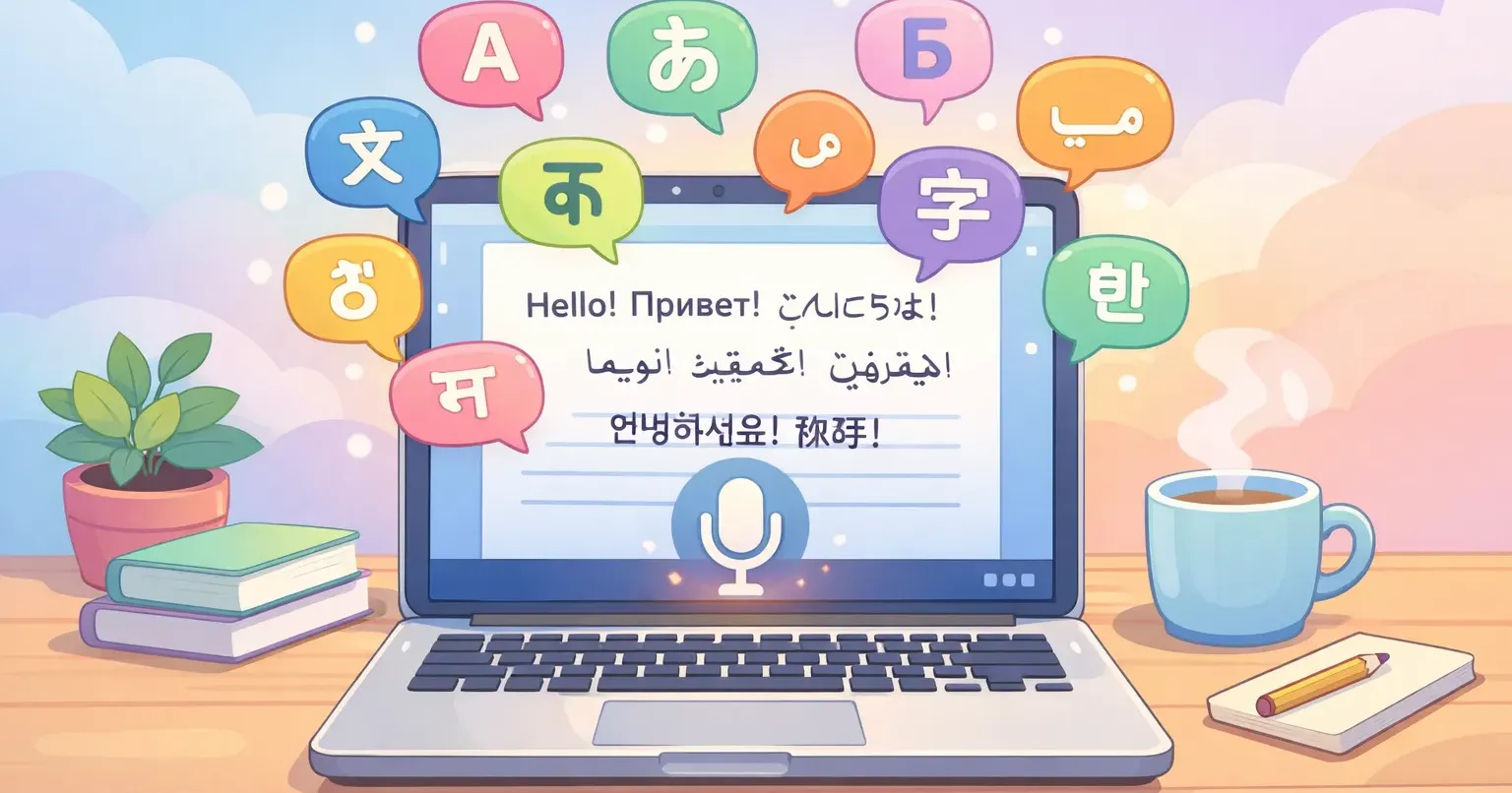
Something quietly changed in the last year. A handful of Mac apps now transcribe and polish your speech across roughly 100 languages, with automatic detection that figures out what you're speaking without you touching a menu. This guide walks through exactly what that means in 2026, which languages are actually covered, where Apple's tool stops working, and how to set up a multilingual dictation flow that doesn't break every time you switch tongues.
What "100 Languages on Mac" Actually Means in 2026
The 100-language figure you see on app websites isn't marketing. It comes from one specific model: OpenAI's Whisper, trained on around 680,000 hours of multilingual audio. The current widely-used variant, large-v3-turbo, supports 99 languages, which most apps round to "100."
Here's the rough list of what's covered. Full European set, including the Nordic and Slavic groups. The major Asian languages: Mandarin, Japanese, Korean, Vietnamese, Thai, Indonesian, Tagalog, Malay. South Asian: Hindi, Bengali, Tamil, Urdu, Marathi, Nepali. Middle Eastern: Arabic, Hebrew, Persian, Turkish, Azerbaijani. African: Swahili, Afrikaans. Plus less obvious ones like Welsh, Maori, Belarusian, Macedonian, Kazakh, and Burmese.
Quality is not uniform across that list. English, Spanish, French, German, Italian, Portuguese, Dutch, Japanese, and Mandarin sit at the top: word error rates around 4–8% on clean audio. Less common languages and ones with sparse training data, like Welsh or Maori, can run 15–25%. Still useful, just not as forgiving.
The bigger shift: all of this now runs on a normal Mac. Apple Silicon hits the point where Whisper's large model transcribes a 30-second clip in under two seconds locally, no cloud round trip. That's why so many Mac apps suddenly look the same. They're all built on the same model.
Where Apple's Built-In Dictation Hits a Ceiling
Apple Dictation has been around since 2012, and it's free. For a single language, in a single app, it's fine. For multilingual work, three things break the flow.
Language count. Apple supports somewhere around 50–60 languages and dialects, depending on the macOS release. Decent for the big European and Asian markets, but you can find yourself out of luck if you need Ukrainian, Tagalog, or Welsh, or if you want fine-grained dialects beyond the few Apple ships.
No automatic language detection. Apple Dictation uses the last language you selected. Forget to switch and your French goes through the English model and comes out as garbage that sort of rhymes with what you said. To change languages, you click the tiny language indicator near your cursor and pick from a list. Every switch is a manual step.
Raw transcript, no polish. What you say is what you get, including "um," "like," restarts, and the half-finished sentence you started before changing your mind. That's a problem in one language and worse in multilingual work, where you tend to speak more cautiously to keep the model on track.
If you only ever dictate in English and don't mind cleaning up afterward, Apple's tool covers it. The minute you need a second language, or you want output that you can paste without rereading, you've outgrown it.
How Whisper Handles 100 Languages Under the Hood
It helps to know roughly what's happening when you hold a key and speak, because it explains why some things work and others don't.
Whisper is a single neural network trained on audio from 99 languages. Instead of running a different model for each language, it learned to recognize all of them at once. The shared training does something useful: a sentence in Italian and a sentence in Portuguese share enough acoustic features that learning one helps with the other. The downside is that all languages compete for the same model capacity, so the rarer ones are weaker.

When audio comes in, the model does three things in one pass: 1. Predicts the language from the first few seconds of audio. 2. Transcribes the words. 3. Adds punctuation and casing.
The language detection is what makes auto mode possible. The model has learned to recognize which language sounds like which. It's usually right within a second or two of you starting to speak. Where it stumbles: very short utterances (one or two words), languages that share a lot of vocabulary (Spanish and Italian, Norwegian and Swedish), and switching mid-sentence. Whisper is built to detect one language per clip, not to follow you bouncing between two.
If you want the full mechanics of how raw speech becomes clean text, the AI voice dictation pipeline walks through every step.
Auto-Detect vs Manual Language Picker: When Each Wins
Modern multilingual dictation apps give you two modes. Knowing when to use which makes the difference between smooth and frustrating.
Use auto-detect when:
You switch languages often during the day but stick to one language per dictation. You're a developer in Berlin who writes English code comments and German Slack messages. You're a journalist working across English and Japanese sources. You manage support tickets across four languages. In all of these, each individual recording is in one language; what changes is which language. Auto-detect saves you the menu hunt every time.
Use a manual language pick when:
You work in less common languages where detection is shakier (Welsh, Maori, Belarusian). You're dictating into a noisy environment where the first second of audio might be ambient sound rather than speech. You're dictating short utterances where there's not enough audio to detect from. Or you're using a language that overlaps with another one the model knows well (it sometimes guesses Portuguese when you meant Galician, for example).
What still doesn't work well:
Code-switching mid-sentence. If you start in Spanish and drop an English brand name in the middle, the model handles it. If you start a sentence in Spanish and finish in English, you'll often get one of the two transcribed as nonsense in the other language. The honest workaround: end the recording at the language boundary and start a new one.
Translating as You Speak: The "Speak X, Output English" Workflow
One of the most overlooked features of modern Mac dictation is speak-and-translate. You speak in your native language, and the text that appears is already in another language. Most often that target is English.
Two underlying methods make this work. First, Whisper's older multilingual variants include a translation task built in: you speak in any of the 99 languages and the model outputs English directly. The newer turbo variant doesn't include this, so most apps now use a different approach: Whisper transcribes in the source language, then a language model translates the text. The second method has higher quality and handles polish at the same time, which is why it's become the standard.
This collapses a real workflow that used to take three steps. Old way: dictate in your native language, copy the text, paste into a translator, copy the result, paste into your email. Around 30 seconds and four context switches. New way: hold one key, speak in your native language, polished English text appears at your cursor. Around 4 seconds.
If you spend any of your day writing English at work but think faster in another language, this single feature is the reason to set up modern dictation. Voicr does this with one hotkey: set Auto for input language and English as the polish output, and every recording lands as ready-to-send English no matter what you spoke.
Real Multilingual Workflows on Mac
Theory is cheap. Here are the patterns that actually save time for real people.
Bilingual notes and journaling
If you take notes in your native language but live in an English-speaking work environment, dictation gives you the best of both. Set the source language to your native one and the output to your native one (no translation), and you stop typing entirely. For meeting notes where you want both the original and an English version, dictate twice with different output settings.
Code with native-language comments
Developers in non-English-speaking teams often keep code in English but write comments in their team's language. Auto-detect handles this without thinking when you switch between dictating into the editor (English code descriptions, function names) and dictating comments in your language. Each recording is one language; the model picks the right one each time.
Customer support across four time zones
Support agents handling tickets in English, Spanish, French, and German typically tab between language profiles in their tools. With multilingual dictation, you read the ticket and reply in the language it's in, then move to the next one. No profile switch, no menu. The polish step matters here too: support replies need a consistent professional tone across every language, not a raw transcript.
Language learners and language teachers
If you're learning a language, dictating in it forces pronunciation and pacing. If the model can't understand you, that's feedback. If you're teaching one, dictating example sentences saves typing accents, special characters, and diacritics. The model adds them correctly. For both, the speak-and-translate flow doubles as instant comprehension: speak in the language you're learning, see if the English matches what you meant.
International writers and journalists
Long-form writers who think in one language and publish in another tend to do the translation in their heads while they type. That's exhausting. Speak the first draft in the language you think in, let the tool produce English, then edit. The first draft happens 3–4x faster, and your editing brain is fresher because it wasn't doing translation duty during the draft.
How to Set Up Multilingual Dictation on Mac
There are two routes: Apple's built-in tool for the simplest case, and a third-party app for everything else.
Setting up Apple Dictation for multiple languages
Open System Settings, go to Keyboard, then click Dictation. Turn it on. Click the dropdown for Languages and add the languages you want. You can add up to about six. From now on, when you start dictation, a small flag or language code will appear near your cursor. Click it to switch languages. Limitations: - No automatic detection. Every switch is a click. - Only ~50–60 languages. - Raw transcript, no polish, no app-aware formatting. - 60-second dictation cutoff in older macOS versions.
Setting up a third-party multilingual app
Modern Mac dictation apps mostly look like menu bar utilities that work in every text field across every app. Setup looks like this: 1. Install the app and grant microphone + accessibility permissions. 2. Set or accept the hotkey (usually FN or Option+Space, hold to record). 3. Pick your input language. For multilingual work, set this to Auto. 4. Pick your output language. Same as input means transcription only; pick English (or any other) to get translation. 5. Optionally, set a polish prompt ("professional", "casual", "keep raw") so the output matches how you want it to read. From then on, anywhere you can type, you can dictate. Hold the key, speak, release, the text appears at your cursor.
If you write to different apps with different tones (formal email, casual Slack, technical docs), this is where Smart Rules come in: a per-app writing style that applies automatically based on which app is active. You set the rule once and stop thinking about it. The same multilingual model handles all of them.
Practical Takeaways
Three things worth remembering as you set up multilingual dictation on your Mac:
One language per recording is the rule. The model handles 100 languages, but it picks one per clip. End the recording at the language boundary instead of trying to switch mid-sentence.
Auto-detect is the default for daily multilingual work. Manual selection is only worth it for short utterances, rare languages, or noisy environments where detection might misfire.
Translation as you speak isn't a separate tool. If your output language is set to English and your input is set to your native language, every recording is a translation. There's no extra step, no second app, no copy-paste.
One Key, Any Language
If you've read this far, the answer to "how do I dictate in 100 languages on my Mac in 2026" is short: install a third-party app built on Whisper, set the input language to Auto, hold a key, and speak. The system handles language detection, transcription, polish, and (optionally) translation in one round trip.
Voicr does this with one hotkey from any app on your Mac. Hold FN, speak in any of 100 languages, release, and polished text lands at your cursor. Set the output language to translate as you speak, or leave it as the source language for clean transcription. There's a free tier with 5,000 words per month, so the cheapest way to find out if multilingual dictation belongs in your workflow is to try it on tomorrow's first email.
If you want to see how modern Mac dictation compares head-to-head with what's on your machine right now, the Voicr vs Apple Dictation breakdown covers the differences feature by feature.