

You open Slack and there are 14 channels with unread badges. Three DMs are waiting for a real reply, not a thumbs-up. You start typing, get pulled into a meeting, come back, and the backlog has grown.
Voice-to-text is the way out of that loop, but Slack on Mac doesn't have a real dictation button anywhere in the message box. There's a microphone, but it records a voice clip — that's a different thing. To actually *type* a Slack message by voice, you need to bring your own dictation.
Below: every working option in 2026, from the free built-in tool to the polishing apps that fix the one thing native dictation gets wrong for Slack. The tone.
What Slack Itself Offers on Mac (and What It Doesn't)
Slack has two voice features built into the Mac app, and people mix them up constantly: - Voice messages (also called audio clips). The microphone icon next to the message box records a short audio clip that gets posted as a player in the channel. Slack auto-generates a transcript under it. - Huddles. The headphone icon starts a live audio room. Huddles can be transcribed after the fact, but they're a meeting, not a message.
Neither of these is voice-to-*text* in the way most people mean. They're voice-to-*audio-clip*, with a transcript attached. The recipient still sees a player they have to click. If your goal is to send a normal-looking text message without typing, Slack doesn't ship anything that does that.
That's the gap dictation fills. Dictation puts characters into the message box exactly as if you'd typed them, then you hit return and it's a regular text message. To the recipient, there's no sign it was spoken.
The Free Way: macOS Dictation in Slack
The fastest free option is the dictation already built into your Mac. It works inside any text field on the system, and Slack's message box is no exception.
Turn It On
Open it like this: 1. System Settings → Keyboard → Dictation, then flip it on. 2. Pick a shortcut. The default on most Macs is double-tap the fn key. On 2021+ MacBook Air and Pro models with a dedicated microphone key (F5), one press fires it. 3. The first time you turn it on, macOS may download an offline language model. Wait for that to finish before testing.
Now click into a Slack channel, fire the shortcut, and start talking. The little microphone overlay appears, your words land in the message box, and you hit return when you're done. That's the whole flow.
The Quirks Worth Knowing
Two things trip people up: - Automatic punctuation is on by default in recent macOS releases, but it's hit or miss. Periods and commas mostly land. Question marks often don't. Say "period", "comma", "question mark" out loud when you need them. - Filler words come through. Every "um", "so", "like", and false start gets transcribed. You'll either learn to speak like a news anchor or spend a few seconds editing before you hit send.
Apple's own dictation hovers around 88% accuracy on general speech, and drops into the 65–75% range in noisy rooms. For one-line replies that's fine. For anything longer, the editing tax adds up fast.
Why Raw Dictation Sounds Wrong in Slack
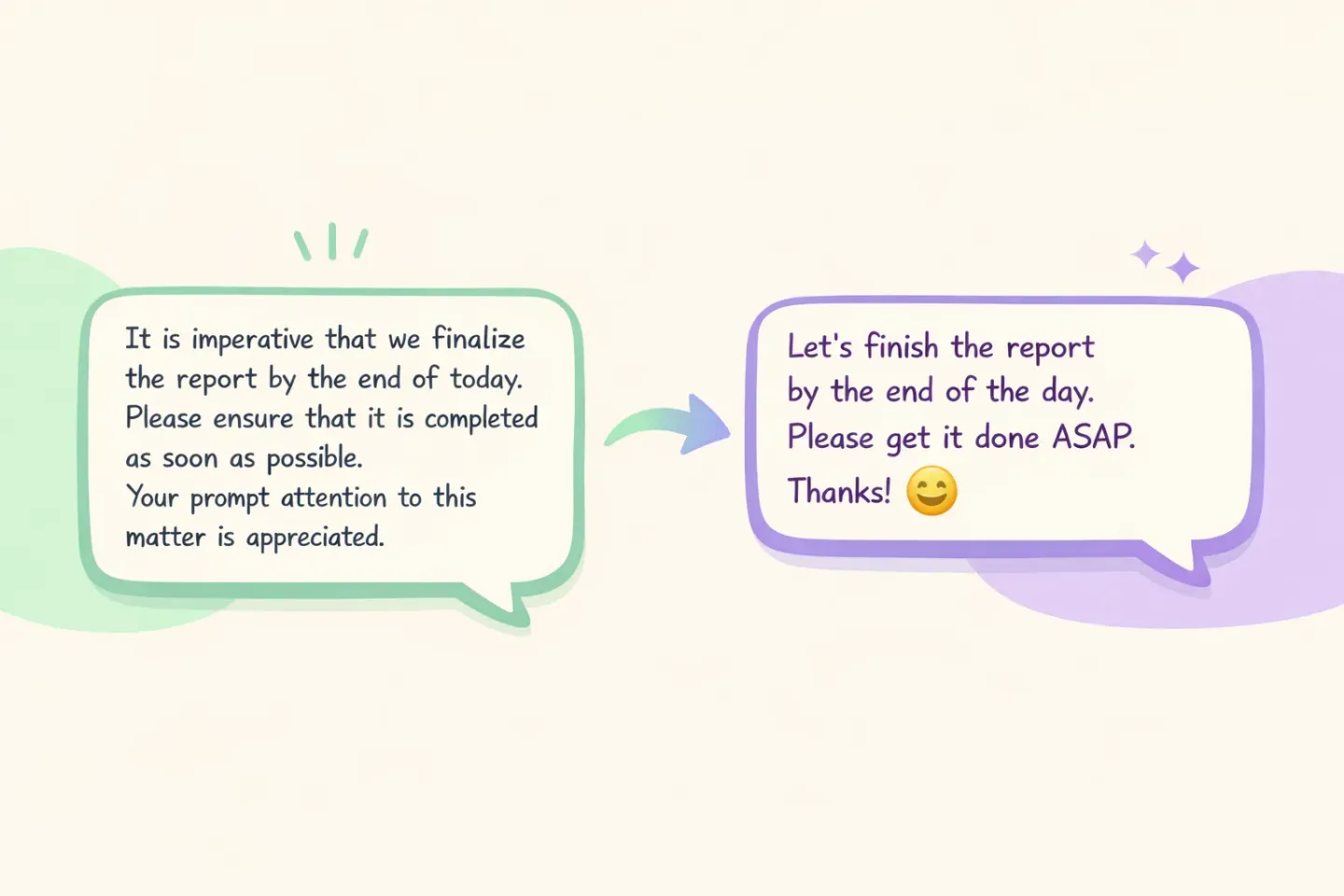
Here's the part the other guides skip. Slack has a tone. It's not email. It's not a doc. People write in short, casual lines, fragments are normal, lowercase is normal, and a five-sentence paragraph reads as aggressive.
Raw dictation doesn't know any of that. You speak the way you'd speak in a call, full sentences and complete thoughts, and the transcript lands as a wall of properly capitalized prose. It reads stiff. It reads like a memo. People notice.
Try saying this out loud: *"Hey, can you take another look at the deck before tomorrow's standup? I'd love your read on slide 12."* Apple's dictation will give you exactly that, capitalized and punctuated. Fine for email. In Slack it lands like you're cosplaying a manager.
What Slack actually wants is closer to: *"hey can you take another look at the deck before standup tomorrow? want your read on slide 12 🙏"*. Same content. Different tone. That's the gap raw dictation never closes.
Slack Voice Messages vs. Dictation: When Each Wins
Voice messages aren't a bad feature, they're just for a different job. Quick rule of thumb: - Dictate when the recipient needs to scan, search, or copy the message later. Bug reports, decisions, status updates, anything in a public channel. - Send a voice message when nuance matters and text would flatten what you're trying to say. Feedback on a design, a tricky cross-team ask, anything one-to-one.
Voice messages cost the recipient time. They have to click, listen, and often re-listen. A dictated text message respects their inbox. Default to dictation. Reach for voice clips when text genuinely can't carry what you mean.
Setting Up a Slack-Friendly Dictation Workflow
If you want dictation to feel natural in Slack — not just functional — three things make a big difference.
1. Pick a Hold-to-Talk Shortcut, Not a Toggle
Toggles (press once to start, press again to stop) leave the mic open while you think. You'll capture every "hmmm" and the dog barking outside. A hold-to-talk shortcut starts when you press and stops when you release. Cleaner audio, cleaner output.
Apple's default fn-fn is a toggle. If you can switch to a hold key (F5 on newer Macs, or whatever hotkey your third-party tool uses), do it.
2. Use a Style That Matches Slack
This is where native dictation hits the wall and dedicated tools start to matter. The polishing layer that rewrites your speech can be told what "Slack-style" means: short lines, lowercase fine, drop the throat-clearing, keep emoji where they help.
This is exactly why Voicr has Smart Rules — you set a tone for Slack, another for email, and it switches automatically based on which app you're in. Speak the same way you always do, but the text that lands in Slack reads casual, while the text that lands in Mail reads buttoned-up. No manual toggle.
3. Dictate One Message at a Time
The instinct is to draft a long message in one breath. Resist it. Speak one message, send it, breathe. Voice is fast enough that batching doesn't save time, and short utterances are where transcription is most accurate.
Power Tips: Emoji, Mentions, and Code Blocks by Voice
Three Slack-specific things people assume can't be dictated, but can:
Mentions
macOS dictation will transcribe "at Sarah" as the literal text. You then have to manually retype it as `@Sarah` so it pings her. The workaround: dictate the message *without* the mention, then add the `@` after with the keyboard. It feels clunky but it's faster than fighting the transcription.
Polishing tools can be told to convert "at Sarah" into `@Sarah` automatically as part of a Slack rule. It saves a step on every message that needs a ping.
Emoji
Apple's dictation supports a handful of emoji by saying things like *"smiley emoji"* or *"thumbs up emoji"*, but the catalog is small and inconsistent. The reliable approach: dictate the words, then add emoji from Slack's own picker (Ctrl+Cmd+Space) after.
Code Blocks
If you paste code or commands into Slack often, dictation won't give you backticks. Two options: type the triple backticks first, click inside the code block, then dictate; or use a polishing tool with a code-aware rule that recognizes when you're dictating a command or file path and wraps it for you.
When to Move Beyond Built-In Dictation
If you send fewer than ten Slack messages a day, macOS dictation is enough. The editing tax is small at that volume.
If Slack is where you live (engineering teams, support, sales, anyone running a channel-heavy day), the cleanup adds up. Most heavy users end up on a polishing dictation tool. The reason is that a polishing tool does three things native doesn't: - Removes filler and tightens grammar before text hits the message box, not after. - Switches tone per app, so Slack reads casual and Mail reads professional from the same spoken sentence. - Works from one hotkey, anywhere on the system, with no app-switching.
If you're already using dictation but spending real time cleaning it up before each send, that's the signal. Tools like Voicr (FN to talk, release to paste) handle the polishing automatically, so what arrives in the Slack box is already the message you'd send.
Your First Dictated Slack Reply: A 60-Second Start
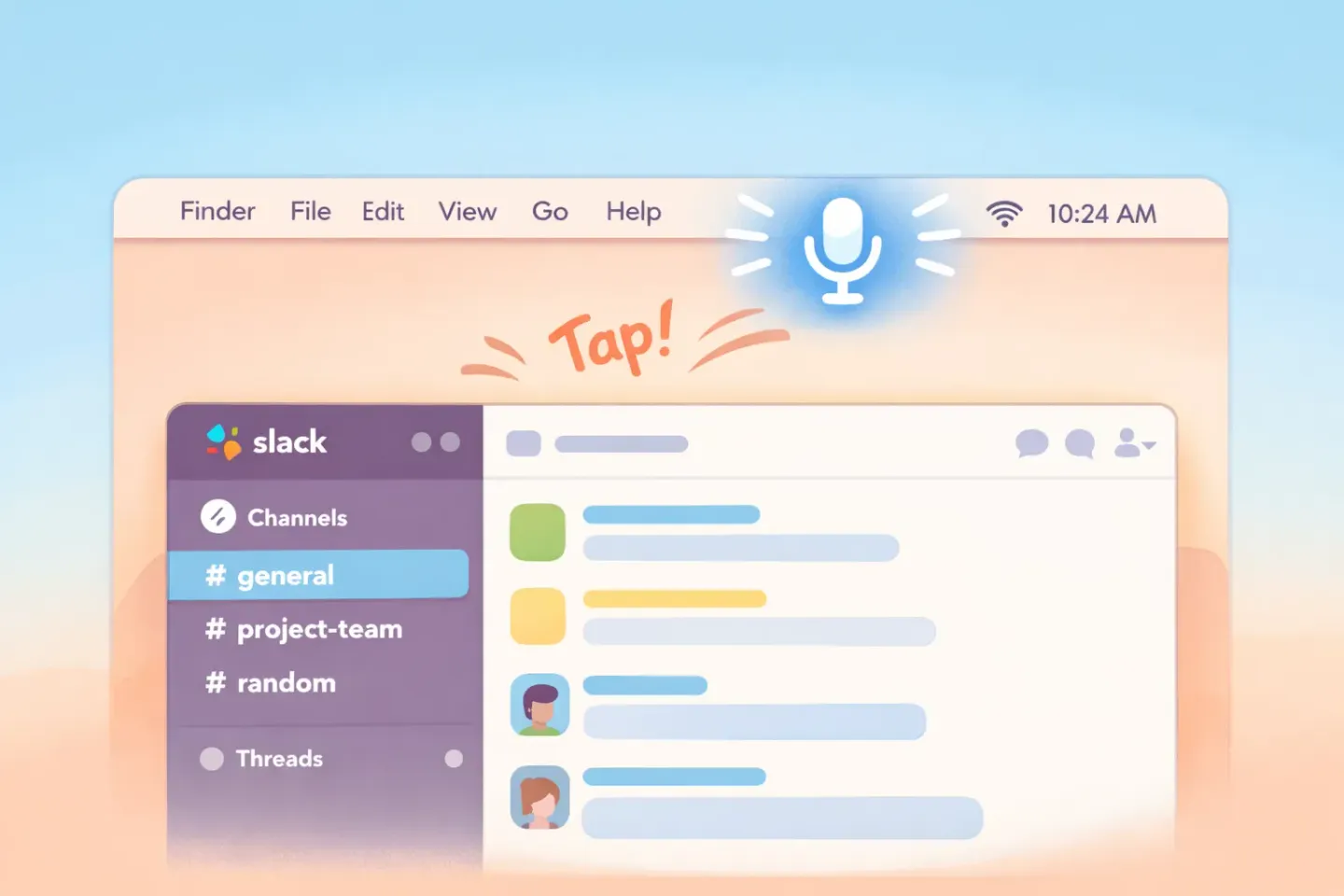
If you've never dictated into Slack before, try this once and you'll know whether it sticks: 1. Open Slack and click into the DM or channel where your next reply is sitting. 2. Fire your dictation shortcut (double-fn for native, FN-hold for Voicr, or whatever tool you use). 3. Speak the reply the way you'd say it out loud, without overthinking the punctuation. 4. Release the key (or fire the shortcut again to stop), give it half a second, then read what landed in the message box. 5. Edit if it needs editing, hit return.
First time, you'll probably edit a bit. By the fifth message you'll stop noticing the transcription quality. By the twentieth, typing into Slack will feel slow.
The fastest path is to try it on a reply you're already about to type. If you want something that polishes your speech automatically and gives Slack its own casual tone (separate from how it formats your email or your docs), Voicr does exactly that. Hold FN, speak, paste, send. The Slack version is already in Slack voice.
For more on what's happening under the hood when AI dictation runs on Mac, see AI Voice Dictation for Mac: How It Actually Works. If you're comparing your options, the Best Voice-to-Text Apps for Mac in 2026 rundown covers how the major dictation tools handle tone, app-specific styles, and accuracy.