
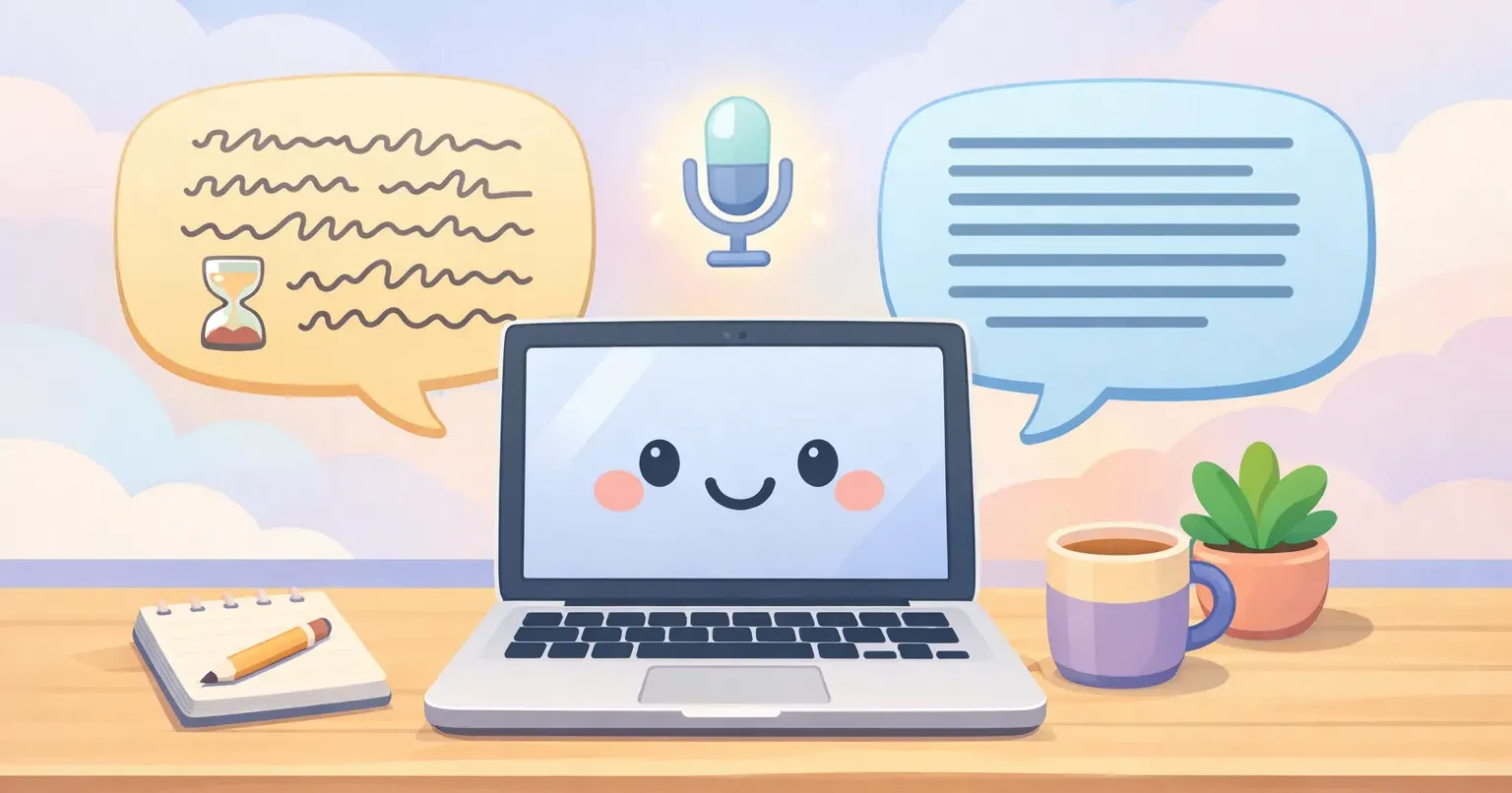
You hold down Fn on your Mac. The little Apple Dictation microphone pops up. You start speaking a paragraph into an email, and somewhere around the one-minute mark, it just stops listening.
So you trigger it again. Three more times. The accuracy is decent, but the punctuation is wrong, the filler words are all still there, and by the time the email is actually ready to send, typing would have been faster.
This is the part of macOS dictation no Apple marketing page mentions. It works fine for one sentence. The minute you try to use it for real writing, like a long message or a doc paragraph or anything multilingual, the cracks show. Here's an honest look at where Apple Dictation falls short, what a modern AI dictation app does differently, and when Apple's built-in tool is still the right call.
What Apple Dictation actually does well
Credit where it's due. Apple Dictation is built into every Mac, it's free, and on Apple Silicon it runs on-device, so your audio never leaves your laptop. No subscription. No API key. No account. You turn it on in System Settings → Keyboard, pick a shortcut (commonly Fn or pressing Control twice), and it shows up everywhere: Mail, Notes, Messages, even third-party apps.
For one-liners, it's perfectly fine. "Remind me to call mom," a quick search box query, dropping a single sentence into a Slack reply. Punctuation commands like "comma," "period," and "new paragraph" mostly do what you'd expect. The accuracy on clean, slow, accent-neutral English in a quiet room is decent.
If your dictation needs are small and occasional, Apple Dictation is the no-brainer free option. There's no reason to pay for or install anything else.
The problem starts when you stop dictating one-liners and try to use voice as your main way of writing.
Where Apple Dictation falls short
Several specific limitations come up over and over. They aren't bugs Apple will patch next quarter. They're choices baked into how the tool was designed.
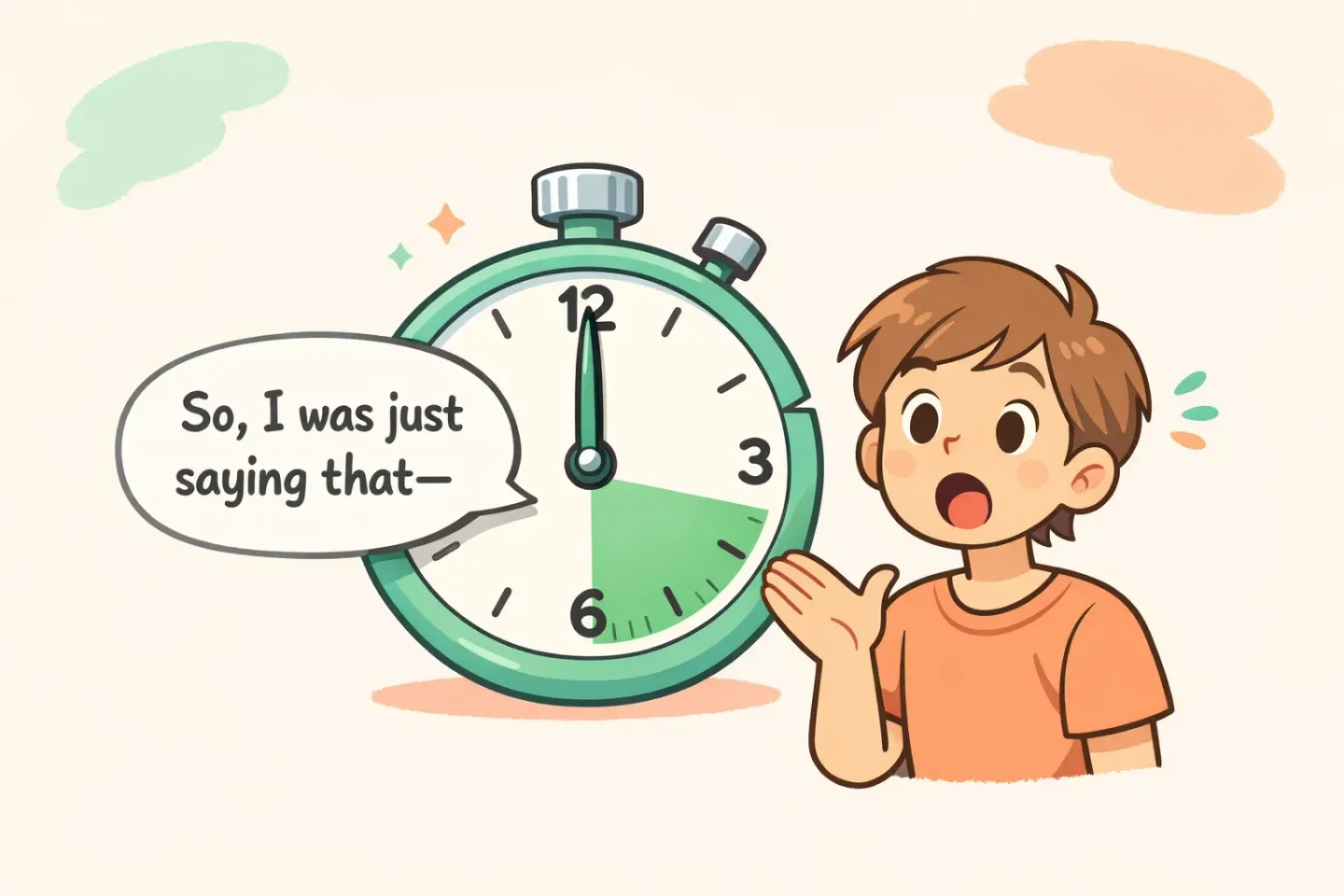
The 60-second timeout. Apple's own support docs and community threads confirm it: Mac Dictation is built for short bursts. After roughly 30–60 seconds of speech, or after a pause that lasts a few seconds, it shuts off, even if you're mid-thought. For a search query, fine. For a real email or a doc paragraph, you'll trigger and re-trigger the shortcut multiple times for a single message.
There's no polishing. Apple Dictation hands you a raw transcript. That includes your filler words, your false starts, your "um," your "wait, scratch that," and the run-on sentences your brain produced while you were thinking out loud. Whatever you said is what you get. So you spend the next few minutes editing it down, which is the exact work voice was supposed to save you.
Punctuation is inconsistent. You can say "comma" and "period" and it usually works, but you have to remember to. Long sentences without explicit commands often come out as one continuous run-on. Worse, users on macOS Sequoia 15.x have reported the reverse: "new line" and "new paragraph" commands silently failing to break the text at all.
No per-app awareness. Whether you're dictating into Slack, Mail, a code comment, or Notes, you get the same flat transcript. There's no concept of "this should sound casual for Slack" versus "this should read like a formal email." If you want different tones, that's manual work you do every single time.
No custom vocabulary. Project names, technical terms, a colleague's name with an unusual spelling: Apple Dictation has no way to learn any of it. It'll keep mishearing them in exactly the same way every time.
Accuracy drift across macOS versions. Community threads document that Apple Dictation has either regressed or quietly stopped working after recent macOS updates. M1/M2/M3 users on Sonoma and Sequoia have reported the microphone icon appearing but no words being transcribed at all. The fixes you'll find online are workarounds, not real fixes from Apple.
Multilingual users have to switch languages by hand. You can dictate in many languages, but only one at a time. Switching between English and Spanish means stopping, going into System Settings, picking a different language, and starting over. There's no detection from your voice. There's no "transcribe Spanish, output English" mode.
Some of these limitations are fine if you dictate occasionally. Most of them stop being fine the moment voice becomes your default way of writing.
How Voicr takes a different approach
Voicr was built around the parts Apple's tool skips. It's a macOS menu bar app: no dock icon, no windows, just a small icon at the top of your screen that lights up while you're talking.
You hold Fn (the same key Apple uses by default) and speak however you'd speak normally. Filler words, false starts, sentences that wander. Release the key. Voicr captures the audio, transcribes it, polishes it with AI, and pastes the cleaned-up result directly into whatever input you were already typing in. No clipboard hop. No ⌘V.
The polishing is the part that matters. It rewrites your speech so it reads like you sat down and typed it carefully. Something like "um, hey so I was thinking, like, maybe we could push the meeting back, what do you think?" comes out as "Hey, I was thinking we could push the meeting back. What do you think?"
You don't edit. You speak, the polished version lands in the input, you move on.
Smart Rules handle the per-app problem. You assign a writing style to each app (casual for Slack, formal for Mail, technical for VSCode, raw notes for Apple Notes), and Voicr detects the active app and applies the right rule automatically. Speak the same way into both Slack and Mail and you'll get two different outputs.
Pure Dictation Mode covers the Apple-style use case. Toggle it on and Voicr gives you a verbatim transcript with proper punctuation and no AI rewriting at all. Good for quotes, raw notes, or anything where cleanup would actually get in the way.
Auto language detection removes the language-switching headache. Voicr listens to your audio, recognizes the language, and transcribes accordingly. Set the target to English and Voicr translates while it transcribes, so you can think in Russian, Spanish, or French and write in English in one keypress.
And there's no 60-second cutoff. Voicr listens as long as you hold the key down.
Side-by-side: where they diverge
Three quick scenarios.
Writing a Slack message
Apple Dictation: trigger dictation, speak the message, manually clean up the "uhs" and any misplaced punctuation, then send.
Voicr: hold Fn, talk, release. The polished casual message is already in the input. Smart Rules made sure it sounds like a Slack message, not an email.
Drafting an email longer than a paragraph
Apple Dictation: dictate the first 30–45 seconds, watch it cut off, re-trigger, continue, watch it cut off again, then edit out all your filler words at the end.
Voicr: hold Fn for the entire email, release once, the polished draft is already in the body. The tone matches "email" because of the Smart Rule for Mail.
Voice notes in Spanish, output in English
Apple Dictation: switch system Dictation language to Spanish, dictate, copy text, paste into a translator, paste the result where you actually wanted it.
Voicr: target language already set to English, hold Fn, speak Spanish, English text appears in the input.
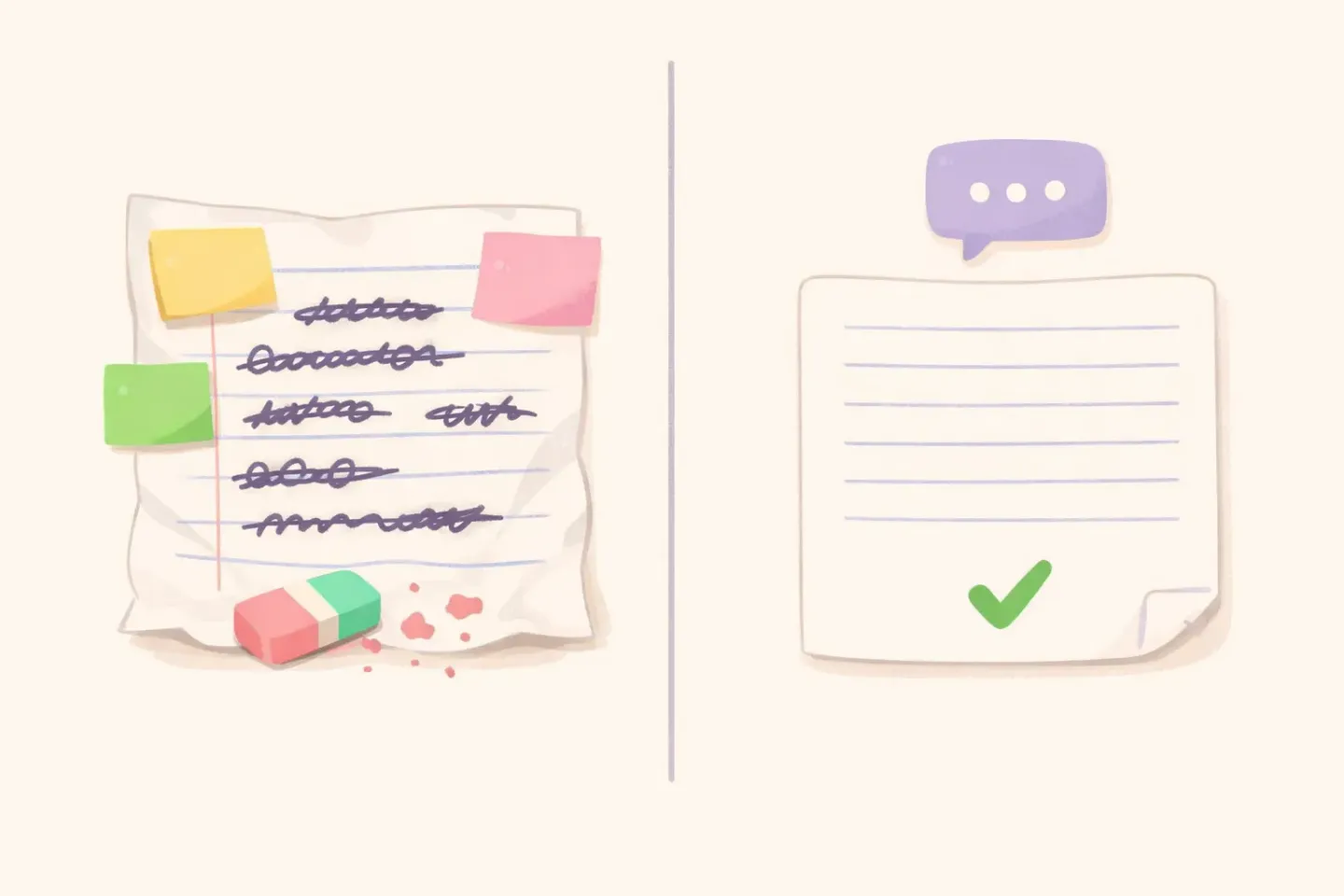
The differences look small per use. They compound when you dictate thirty times a day.
If you're already using Apple Dictation and spending time cleaning up the output every time, that's the exact gap Voicr was built for. Transcription and polishing happen in one keypress, and the result lands in the input, not the clipboard.
When Apple Dictation is still the right pick
Worth being honest. There are real scenarios where you don't need to install anything else.
You only dictate occasionally. A couple of one-liners a day, maybe a search box now and then. Apple Dictation handles that with zero friction.
You only want raw transcription. Verbatim notes, dictating quotes, anything where AI cleanup would actually get in the way. Voicr has Pure Dictation Mode for this, but if Apple's tool is already there and working for you, there's no reason to switch.
You can't install third-party apps. Some workplaces don't allow extra software, period. Apple Dictation is what's on the Mac out of the box, and on Apple Silicon the audio doesn't leave your laptop.
You're on an Intel Mac. Older Macs don't get the on-device version of Apple Dictation, and Voicr is built around Apple Silicon. Voice on Intel hardware will be a compromise either way.
For everyone else (anyone writing actual emails, messages, or docs by voice on an M-series Mac), the gap between "raw transcript with a 60-second timeout" and "polished text that knows what app you're in" gets large fast.
What you get on Voicr Free
One pricing note, since "Apple Dictation is free" is the standard reason people don't try alternatives.
Voicr's Free plan is 5,000 words per month, with every feature included: - Smart Rules for per-app writing styles - Pure Dictation Mode for raw transcription - Auto language detection across 100 languages - Translation to English while dictating - Text Correction with custom prompts (⌥Space on any selected text) - Recording History and Notes All of it. No credit card.
Most people who switch find they speak somewhere between 3,000 and 8,000 words a month into dictation. If you go over the Free tier, GO is $3/month for 20,000 words, and PRO is $10/month for 100,000. Every tier includes every feature. Nothing is locked behind a higher plan.
Compared to Apple's "free, but limited in fundamental ways," Voicr Free gives you the full app to actually try.
Practical takeaway: when to switch
The honest test is this. Try dictating a real email of three to five sentences using Apple Dictation. Then look at what came out before you cleaned it up.
If the answer is "it's basically ready to send," you don't need anything else. Apple Dictation is doing its job.
If the answer is "it stopped halfway, the punctuation is wrong, and I just rewrote half of it before sending," that's the gap Voicr was built to close. The fastest way to find out is to install it, set Fn as your trigger, and try the same email by voice. The version that pastes into the draft is the version you'd have sent anyway, minus the cleanup.
Voicr also coexists with Apple Dictation fine. You can keep both installed; they use different shortcuts. Some people stick with Apple Dictation for single-word search-box stuff and use Voicr for anything longer than a sentence. If you want a deeper look at how Voicr stacks up against other paid alternatives, the Voicr vs Wispr Flow comparison covers that side.
Speaking instead of typing
You already know what you want to say in that message. You shouldn't have to type it twice: first by speaking, then by cleaning up what your speech became on screen.
With Voicr: hold Fn, talk like you're talking to a friend, release. The text that lands is the version a careful version of you would have typed, in the tone of the app you're in. Apple Dictation gets you halfway there. The polishing, the per-app awareness, and the willingness to listen for longer than a minute is the half it leaves on the table. That's where Voicr picks up.