

You think faster than you type. That's not a personal failing, it's basic math. The average person speaks at around 150 words per minute and types at around 40. Three hours of typing could be one hour of speaking.
So why are you still hammering at keys? Probably because the dictation tool you tried once gave you a half-readable transcript full of "um"s and missed punctuation, and cleaning it up felt slower than typing. Fair. But that's not the only option on Mac anymore.
This guide walks through every way to transcribe speech to text on a Mac instantly, from the built-in feature most people don't have set up correctly, to the AI dictation tools that polish your words as they appear. By the end you'll have a one-key workflow that beats typing for almost everything you write.
What "Instant" Actually Means on Mac
Search results for "Mac speech to text" mix up two very different jobs. One is live dictation: you speak and text appears in whatever app you're in right now, the same way typing would. The other is file transcription: you upload an audio recording and wait for a transcript.
This article is about the first one. If you're trying to transcribe a podcast episode or a Zoom recording, you want a different tool. Voice Memos on Apple silicon can do that natively now, and there are plenty of upload-and-wait apps for longer files. If you want to speak instead of type, for emails, Slack messages, notes, and drafts, read on.
The Built-In Way: macOS Dictation
Every Mac since OS X 10.8 has had dictation. Most people don't use it because they don't know it's there, or they tried it once when it was bad. Here's how to turn it on in macOS Sequoia or Sonoma:
1. Open System Settings → Keyboard 2. Scroll to Dictation and flip the toggle 3. Pick a shortcut. The default is pressing Control twice, but you can change it to Fn twice or anything custom 4. Click anywhere you can type, hit your shortcut, and start speaking
That's it. You can dictate into any text field on your Mac: Notes, Mail, Slack, Pages, Safari address bars, anywhere. To stop, press the shortcut again or hit Escape. Punctuation has to be spoken out loud: "comma", "period", "new paragraph".
Where Built-In Dictation Falls Short
For one-liners, Apple's dictation is fine. For anything you actually want to send to another human, it starts to creak. It breaks down in three ways.
First, accuracy drops on real speech. Apple Dictation runs at roughly 15-18% word error rate on accented or technical content, about one wrong word every six. GPT-4o Transcribe and Deepgram Nova-3, the engines behind most third-party AI dictation apps, sit at 5-9% WER on the same kinds of audio. That's the gap between "barely usable" and "didn't notice it was dictated".
Second, there's no polishing. Apple transcribes what you said, word for word. Say "so, um, like, I was thinking we could maybe move the meeting to Tuesday" and that's exactly what lands in your text field. You still have to clean it up.
Third, one style for every app. A casual Slack DM and a formal client email get the same treatment. If you want different tones, you're switching them manually after the fact.
The One-Key AI Dictation Workflow
The newer dictation apps for Mac fix all three. They run your audio through a stronger model (usually Whisper or GPT-4o-Transcribe), then send the transcript through a language model to clean it up. The whole loop takes a few seconds. The workflow is the same in every one of them:
1. Hold one key. Usually Fn or a function key you assign. One key, not a chord. 2. Speak. Naturally. With filler words. Don't think about punctuation. 3. Release the key. The app transcribes and polishes in the background. 4. Paste. The final text lands in your clipboard or directly at your cursor.
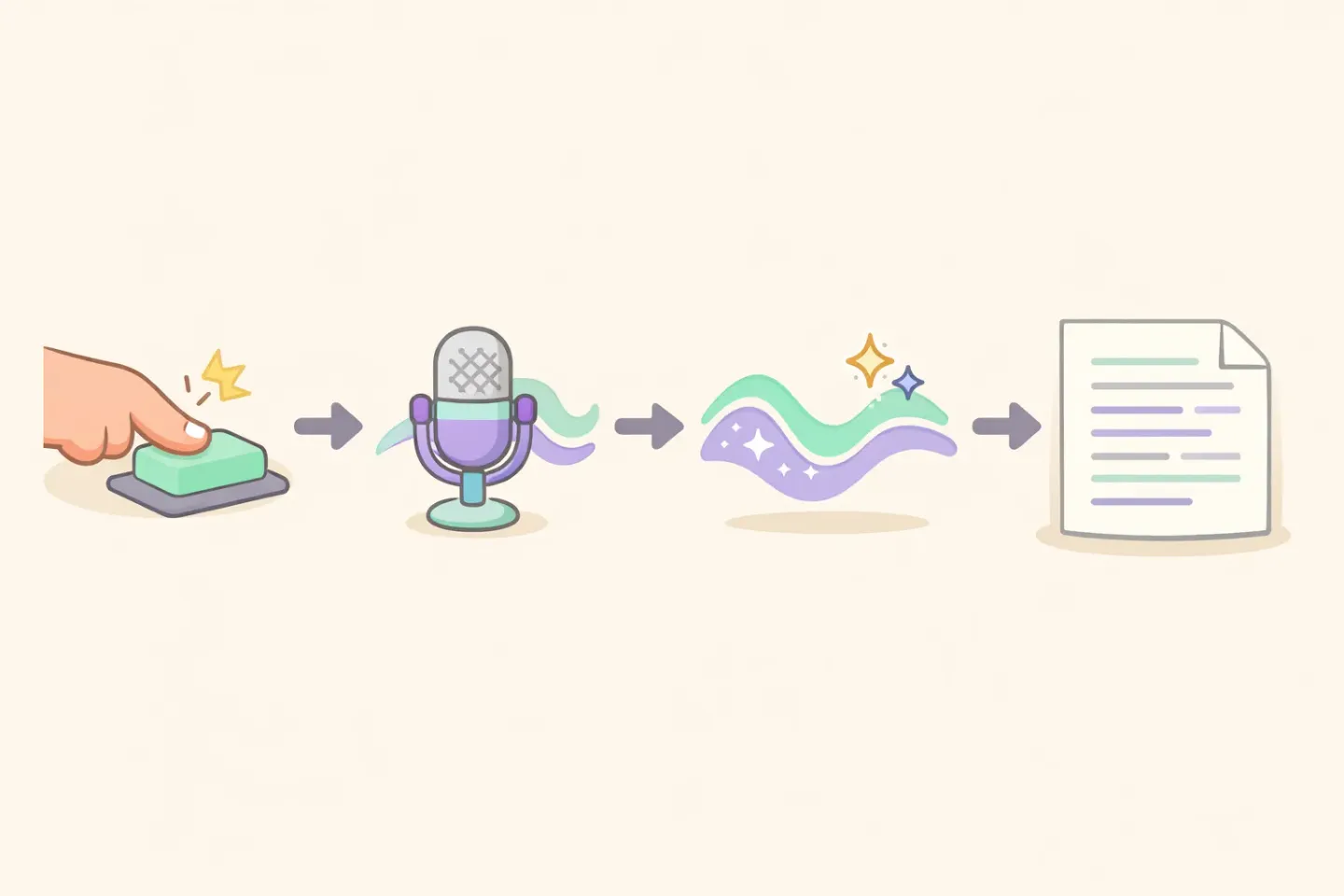
If you're already using Apple's dictation but spending time editing the output, this is the upgrade. The polishing step removes "um"s, fixes grammar, adds punctuation, and turns rambling into clean sentences. You speak how you talk. The output reads how you write.
Voicr is one of the apps built around this pattern. Hold FN, speak, paste polished text. There are others worth comparing; the Mac voice-to-text app roundup covers the full landscape.
How to Set Up Instant Dictation in 5 Minutes
Three decisions to make before you start.
Pick a hold-to-talk shortcut. One key, not a chord. Fn is ideal because it sits under your left thumb and isn't bound to anything else by default. Avoid Command, Option, and Control. They collide with system shortcuts you actually use.
Pick a model. Most apps offer a few. GPT-4o-Transcribe is the most accurate cloud option as of 2026. Whisper large-v3-turbo is the open-source workhorse: fast, around 100 languages, runs cloud or locally. If you're handling anything sensitive, look for an app that runs Whisper locally on your Mac so nothing leaves the device.
Decide on polishing. Some apps default to polished output: cleaned-up, professional. Others default to raw transcription: exactly what you said, properly punctuated. Pick polished for emails and docs. Pick raw if you're transcribing a quote or capturing a thought verbatim. The good tools let you switch per session.
Quick Wins to Dictate Faster Today
Even with the right tool, the first week feels weird. You'll catch yourself trying to dictate the way you type: careful, punctuated, edited mid-sentence. Don't. Speak the way you'd talk on the phone.
Some habits that compress the learning curve: - Speak in phrases, not full paragraphs. Hit your shortcut, say one or two sentences, release, paste. Repeat. Trying to dictate a 500-word email in one breath is rough. - Don't fix it mid-flow. Get the whole thing out, then edit. Backtracking kills the speed advantage. - Save longer dictation for distraction-free moments. Walk, pace, look out the window. Anywhere that's not your screen. You'll think more clearly.
The thing that changes everything is different styles for different apps. A Slack message wants casual brevity. An email to a client wants a proper greeting and sign-off. A code comment wants a different tone entirely. This is why Voicr has Smart Rules. You set a style per app once, and it switches automatically based on which window is in focus. No manual toggling, no "rewrite this as a casual Slack message" prompts.
Built-In vs AI Dictation: When to Use Each
Both approaches have a place. The honest comparison:
Use Apple Dictation when you want zero setup, the dictation is short (one or two sentences), and you don't mind cleaning it up. Free, works offline on Apple silicon, no third-party install. For a Notes entry or a quick reply, it's plenty.
Use an AI dictation app when you write more than a few hundred words a day across multiple apps, you want polished output without editing, or you need accuracy on accented or technical speech. Setup is about five minutes. After that you stop noticing it.
For a deeper side-by-side with built-in dictation specifically, see Voicr vs Apple Dictation.
Speak Your Next Email Instead of Typing It
The fastest way to find out if voice-to-text changes how you work is to pick one task today and do it by voice instead of by hand. An email reply. A long Slack message. A morning journal entry. The first try will feel slower than typing. The third one won't.
If you want something that polishes your speech automatically and works from any app with one key press, Voicr does exactly that. Hold FN, speak, paste. Five thousand words a month is free, no card. It's the version of "speech to text on Mac instantly" that actually feels instant.