
You're on a Zoom call with a supplier in São Paulo who keeps slipping into Portuguese. Or you're watching a Japanese product keynote and the auto-subtitles haven't caught up. Or you think in Spanish but your client expects English emails.
Three completely different problems. All three get lumped under "real-time speech translation on Mac," and that's why most guides on the topic are confusing. The right tool depends on which one you're actually trying to solve.
Apple shipped Live Translation in macOS 26 last fall. Whisper got a Turbo model that runs on a MacBook Air without melting it. The dictation tools that used to be a hobbyist mess are now genuinely good. This guide walks through what's available, when each option actually fits, and how to set them up without falling into the demo-video trap.
What "Real Time" Actually Means
Before picking a tool, name the workflow. There are three distinct flavors of "real time" on a Mac, and they need different software:
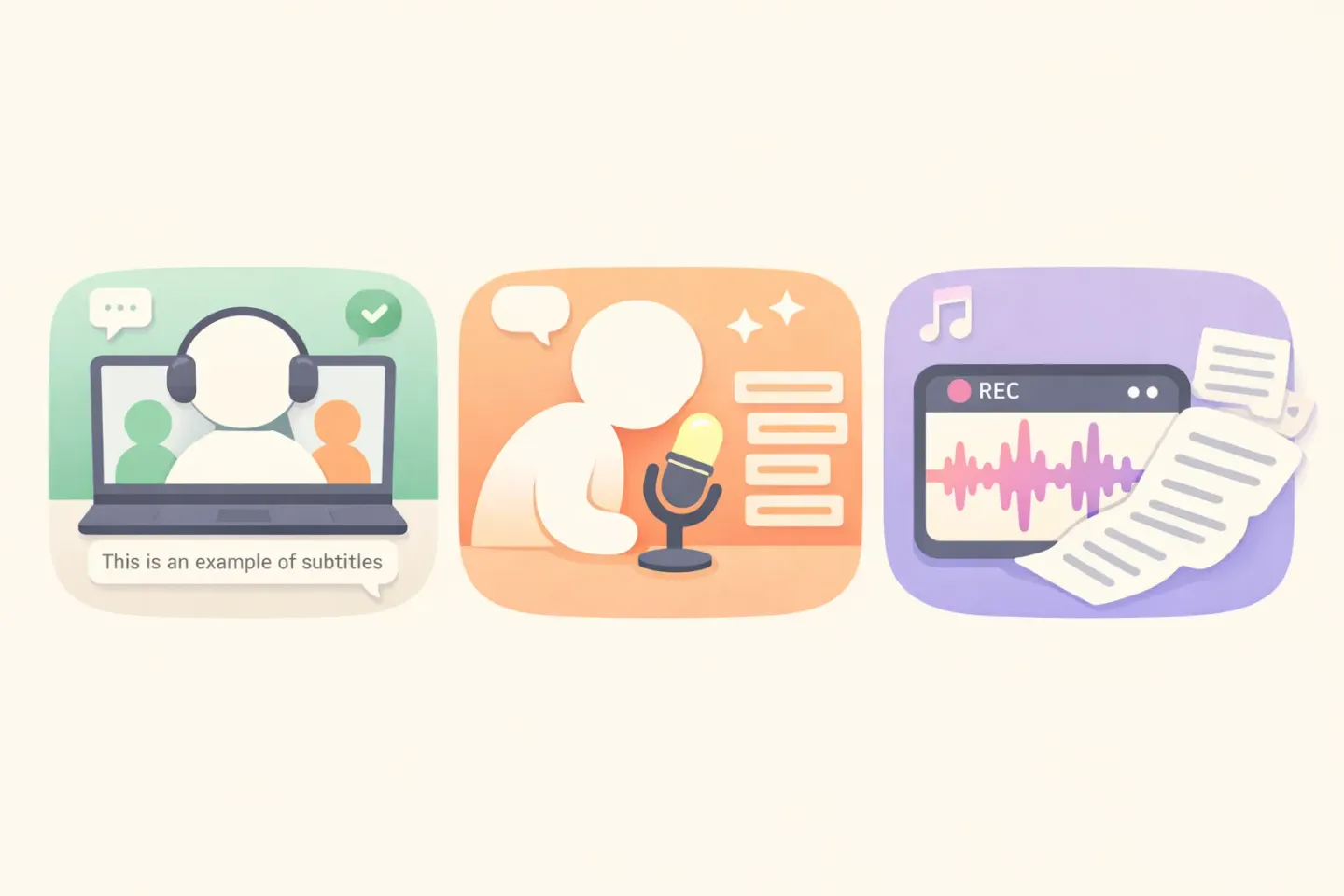
Live captioning — someone else is talking and you want subtitles, possibly translated, while they speak. Calls, meetings, lectures, livestreams. Latency matters. A 4-second delay is annoying; a 10-second delay is useless.
Dictation — you are the one talking, and you want clean text in another language at the end. Emails, Slack messages, docs. The transcript and the translation happen in one shot when you stop speaking. Sub-second response when you finish matters more than streaming words as you go.
File transcription — you have a recording (Zoom export, voice memo, podcast) and you want a translated transcript. Not actually real time. Throw it at the highest-accuracy model you can find and wait two minutes.
Mixing these up is how people end up using a meeting-transcription tool to write quick emails, or trying to caption a YouTube video with a dictation app. Pick the right category first, then pick a tool.
The Built-In macOS Options
If you're on macOS 26 with an Apple Silicon Mac, Apple gives you two built-in tools, plus one important gap.
Live Translation (macOS 26)
Live Translation runs through Messages, FaceTime, and the new Phone app for Mac. It's powered by Apple Intelligence and runs on-device, so nothing leaves your machine. On a FaceTime call you click the menu button, choose Live Captions, and a translated transcript appears near the top of the screen.
The catch is the language list. For Live Translation in FaceTime and Phone, Apple supports English, French, German, Portuguese (Brazil), and Spanish (Spain), with Mandarin, Italian, Japanese, and Korean rolling out. Messages covers a wider set including Danish, Dutch, Norwegian, Swedish, Turkish, and Vietnamese.
It's free, private, and the latency is good. It also only works inside Apple's own apps. Zoom, Google Meet, Slack huddles, YouTube — none of those route through Live Translation.
Live Captions
Turn on Live Captions in System Settings → Accessibility → Live Captions and you get a floating window that transcribes any audio your Mac picks up — system audio, microphone, or both. It works in any app: Zoom, YouTube, a podcast, a colleague speaking next to you.
Live Captions transcribes but doesn't translate. It is also English-only at the time of writing. If your meeting is in English and you just need text to follow along, this is the answer. If the meeting is in Portuguese, Live Captions won't help.
Live Captions and Translation for Calls and Videos
When Apple's built-in tools don't cover your call, a small group of third-party apps fill the gap. They tap into system audio (whatever's playing through your Mac's speakers) or your microphone, transcribe it with a local Whisper model, and optionally translate it. All three below run on-device, which matters if you're in a confidential call.
MacWhisper — One of the longest-running Mac apps in this space. Live captioning with translation, runs on Whisper and Nvidia Parakeet, supports system audio capture for any meeting tool. Solid for Zoom, Meet, Teams. Pro version is a one-time purchase.
Superwhisper — Combines live transcription with a Whisper-based dictation flow. Supports 100+ languages and can translate any of them to English. Tries to be both a captioning tool and a dictation tool, which works if you want one app for both but means the dictation side is heavier than a dedicated tool.
Transcrybe — Newer, leaner, focused specifically on real-time translation. On-device only. The interface is built around "someone is speaking a language I don't know — show me what they're saying." Good for travel, support calls, watching foreign-language content.
Pick based on how often you're in this scenario. If you live in international calls, MacWhisper or Superwhisper earn the seat in your menu bar. If you only need it occasionally, Apple's Live Translation inside FaceTime might be enough.
Dictating in One Language, Writing in Another
The most common "real-time translation" need has nothing to do with other people talking. It's about *you*, thinking in your native language but needing English on the page because that's what work expects.
If you're Spanish, French, or Polish and write a lot of English at work, you know the tax. You compose the sentence in your head in your own language, mentally translate it, then type the translation. Every email is two drafts: the one you wrote in your head, and the one your fingers produced.
The shape of the right tool here is different from live captioning. You don't need streaming subtitles. You need: hold one key, speak naturally in your language, release, and have polished text in the target language land on your clipboard, ready to paste anywhere (Gmail, Slack, Notion, a Jira ticket).
This is the gap Voicr fills. Hold FN, speak in any of 100 languages, set English as the target, and what gets pasted is clean English, not your raw transcript run through a separate translator. The transcription and translation happen in one step instead of speech → transcript → copy → translator → paste. The whole thing takes about as long as it takes you to talk.
There's also an Auto-detect mode that figures out the spoken language from the audio itself, so if you switch between, say, Spanish for personal Slack and English for client email, you don't open a picker. Small detail, easy to miss in a feature list. The longer breakdown is in Voice-to-Text in 100 Languages on Mac.
Transcribing Pre-Recorded Audio
If you have a file (a Zoom recording, a voice memo, an interview, a podcast), "real time" isn't the right frame. Throw the file at a Whisper-based tool that runs at full quality and let it take two minutes. Accuracy is what matters.
MacWhisper and Whisper Transcription both handle this well. So does the OpenAI API directly if you're comfortable with a script. For translation specifically, note that Whisper's built-in translation only goes one direction: any language → English. If you need the other direction (English → Japanese, say), run the transcript through a separate translation model afterward, like Claude, GPT, or DeepL.
Skip this section if your input is always live. But if you record interviews or pull transcripts off old meetings, the offline workflow stays cheaper, more accurate, and easier to fix than streaming.
Choosing the Right Setup for Your Workflow
A quick decision tree:
1. I want subtitles during a FaceTime or Messages conversation → Apple Live Translation. Free, built-in, on-device. 2. I want subtitles during a Zoom/Meet/Teams call in a language I don't speak → MacWhisper, Superwhisper, or Transcrybe. Pick one. 3. I want to dictate in my native language and get English text to paste anywhere → A one-key dictation tool like Voicr. This is the daily-driver case for bilingual professionals. 4. I want to transcribe a recorded file in another language and get English → MacWhisper or any Whisper-based desktop app. Offline, full-quality model, two-minute wait.
Most people end up with two tools, not one: something for live captions when they need it (occasionally), and something for daily dictation (constantly). That split is normal. A captioning tool and a dictation tool optimize for different things, and trying to make one do both usually means doing both worse.
Setting Realistic Expectations
A few things every demo video glosses over, worth knowing before you commit:
Latency is real. Even on-device Whisper has 1–3 second delay for live captions. Cloud-based tools add another 1–2 seconds. Plan for it. Don't try to use live captioning to follow a fast political debate, you'll fall behind.
Translation quality drops outside the top ~10 languages. Whisper itself is excellent for English, Spanish, French, German, Portuguese, Italian, Mandarin, Japanese. It gets noticeably weaker on Thai, Cantonese, Vietnamese, and most African languages. If your language is on the long tail, test before you depend on it.
System audio capture needs permission. macOS doesn't let an app listen to system audio by default. Every tool in the live-captioning category will walk you through granting Screen Recording or audio-loopback permission the first time. This is normal. It's also why some apps require a one-time virtual audio device install.
Privacy varies. Apple's tools and most Whisper-based apps run fully on-device. Anything that sends audio to a cloud API (some "AI meeting assistant" tools) is making a different trade-off. If you're in legal, healthcare, or anything regulated, check before you turn on a tool in a client call.
A Practical Starting Point
The easiest place to start, regardless of your end goal, is to pick the single use case you hit most often this week. Not the rare one. The daily one.
If you're in a lot of international meetings, install one live-captioning tool, leave it in the menu bar, and use it for two weeks before deciding. If you write a lot of English while thinking in another language, try replacing the next ten emails you'd normally type with dictation in your native language and let the tool produce the English.
Voicr handles the dictation case specifically. Hold FN, speak in your language, set English as the target, paste anywhere. There's a free tier (5,000 words a month, no credit card) that's enough to see whether the workflow actually fits how you write. For the live-captioning case, MacWhisper has a free version with the basic Whisper model that's enough to test the experience before paying.
The technology stopped being the bottleneck a while ago. The interesting question now is which workflow you actually set up and use, and that comes down to picking the right tool for the specific friction you keep hitting. For more on the dictation side, How Voice Dictation on Mac Actually Works walks through what happens between your voice and the polished text on your clipboard.