
The average office worker spends around 2.6 hours a day on email. That's roughly a third of your workday gone to a single task: reading and writing messages. Shaving even a couple of minutes off each reply adds up to real time back over a week.
Dictating is the obvious shortcut. Most people think in full sentences faster than they type them. The problem is that most dictation tools live outside your inbox. You bounce between your email and a separate app, copy and paste, switch windows, fix things twice. By the third email, you've lost more time than you saved.
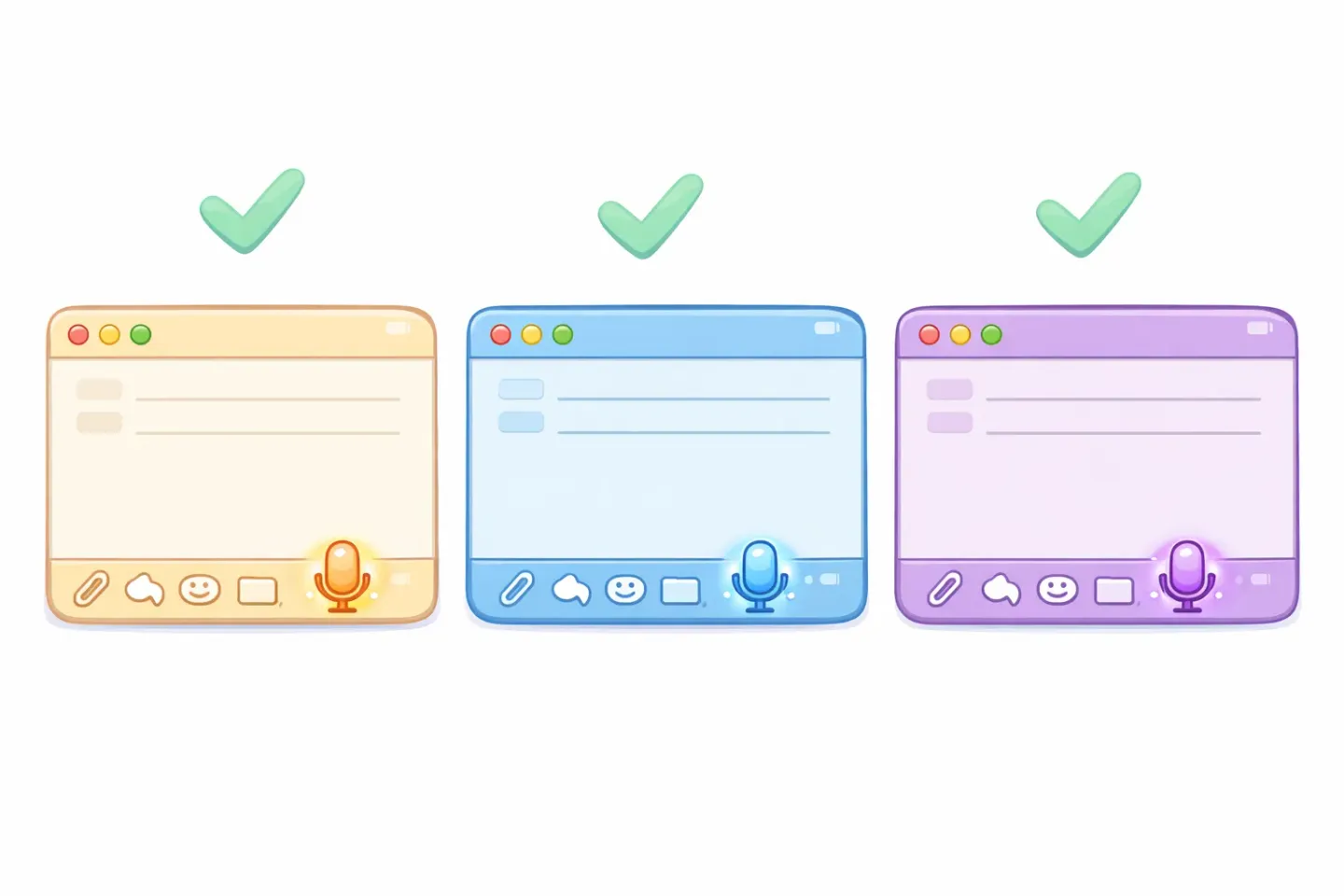
The good news is that you can dictate emails on Mac directly inside the compose window. Apple Mail, Gmail, and Outlook all support it, with different quirks. Here's how each one works, where the built-in tools stop being useful, and what to do about it.
Why leaving your inbox breaks email flow
Email is mostly context work. You're holding the recipient in your head, the previous thread, the tone you need to hit, the specific question you're answering. Drafting the words is the easy part. Keeping all that loaded in your brain is the hard part.
Every time you switch apps, you drop some of it. You open a separate dictation tool, wait for it to load, click the right window, paste, swap back, find your place. By then the careful response you had in mind is three drafts away.
Staying inside the compose window keeps your eyes on the thread. You read the original message, talk through your reply, and the draft appears in front of you. That's the workflow worth setting up.
The built-in Mac dictation shortcut
macOS ships with dictation already installed. It's not the most accurate engine on the market, but it's free, processes most audio on-device (Apple's privacy posture is decent here), and works in every text field on your Mac.
Turn it on in System Settings → Keyboard → Dictation. Pick a shortcut you'll actually remember. Double-tapping a modifier key like Control or Right Command is the default, and it's faster than reaching for the function row.
From then on the flow is simple. Click into any text field, trigger the shortcut, talk. Say "comma," "period," or "new paragraph" to add punctuation. When you're done, hit the shortcut again or pause for a second.
The 30 to 60 second catch
Built-in dictation tends to cut out after roughly a minute of continuous speech. For one-liners and quick replies, no problem. For a longer email, you'll have to dictate in chunks and stitch them together. Which is the exact context-switch problem this was supposed to solve.
Accuracy on technical terms, names, and acronyms is also weaker than dedicated transcription tools. If your work involves industry jargon, expect to clean up more than feels reasonable. Voicr's deeper look at how AI voice dictation works on Mac covers why this gap exists.
Dictating in Apple Mail
Apple Mail is the friendliest case. Open a new message, click into the body, trigger your dictation shortcut, and speak. The text lands directly in the message body as you talk.
A few things that help in practice. Type your subject lines instead of dictating them. They're short, and short fragments are exactly where voice transcription misfires most. Verify recipient names by hand after the dictation pass; "Andrew" and "Andreas" sound close enough that one of them will land wrong. And don't bother dictating sign-offs. "Best, [your name]" is a template. A keyboard shortcut or text snippet does it in one keystroke.
The compose window itself doesn't have its own dictate button. System-wide dictation is the only built-in path, now that Apple has streamlined the legacy menu options in recent macOS versions.
Dictating in Gmail on Mac
Gmail in the browser handles voice input in two ways.
System dictation works the same as in Apple Mail. Click into the compose area in Chrome, Safari, or Firefox, trigger your shortcut, and speak. The text goes into the email body as if you were typing.
Google's own voice typing lives inside Google Docs, not Gmail. The Gmail compose window has no native voice button. If you want a Gmail-specific solution, browser extensions like Voice In or Voicy add a microphone icon to the compose toolbar with no time limit. The catch is they only work in the browser tab, and you're trusting another extension with access to your inbox content. Worth keeping in mind.
For most people, system dictation is the cleaner option. One setup, one shortcut, works in Gmail and every other app you use.
Dictating in Outlook for Mac
Outlook for Mac actually has its own dictate button. Open a new message, click the Dictate icon in the toolbar (or use Message → Dictate from the menu), and start talking. Microsoft processes the audio in the cloud, which means it's accurate for longer dictation sessions but requires an internet connection.
Outlook's dictate button supports auto-punctuation and works past the 60-second limit you hit in built-in macOS dictation. The trade-off is the lock-in. It only works inside Outlook. For Gmail, Apple Mail, Slack, or anything else, you're back to system dictation or a different tool entirely.
Where raw dictation falls short
Here's the honest part. Every dictation tool covered so far, Apple's, Microsoft's, Google's, gives you a raw transcript. It captures what you said, word for word, filler words and all.
If you speak the way most people think, your transcript ends up looking like this:
*"so basically what I wanted to say is, um, the meeting on Friday, actually Thursday, won't work for me because, you know, I have a conflict, can we maybe push it to next week or something."*
That's not an email you can send. So you delete the fillers, fix the grammar, restructure the sentence, rewrite the tone. For a long email, that cleanup pass can take as long as typing the whole thing would have.
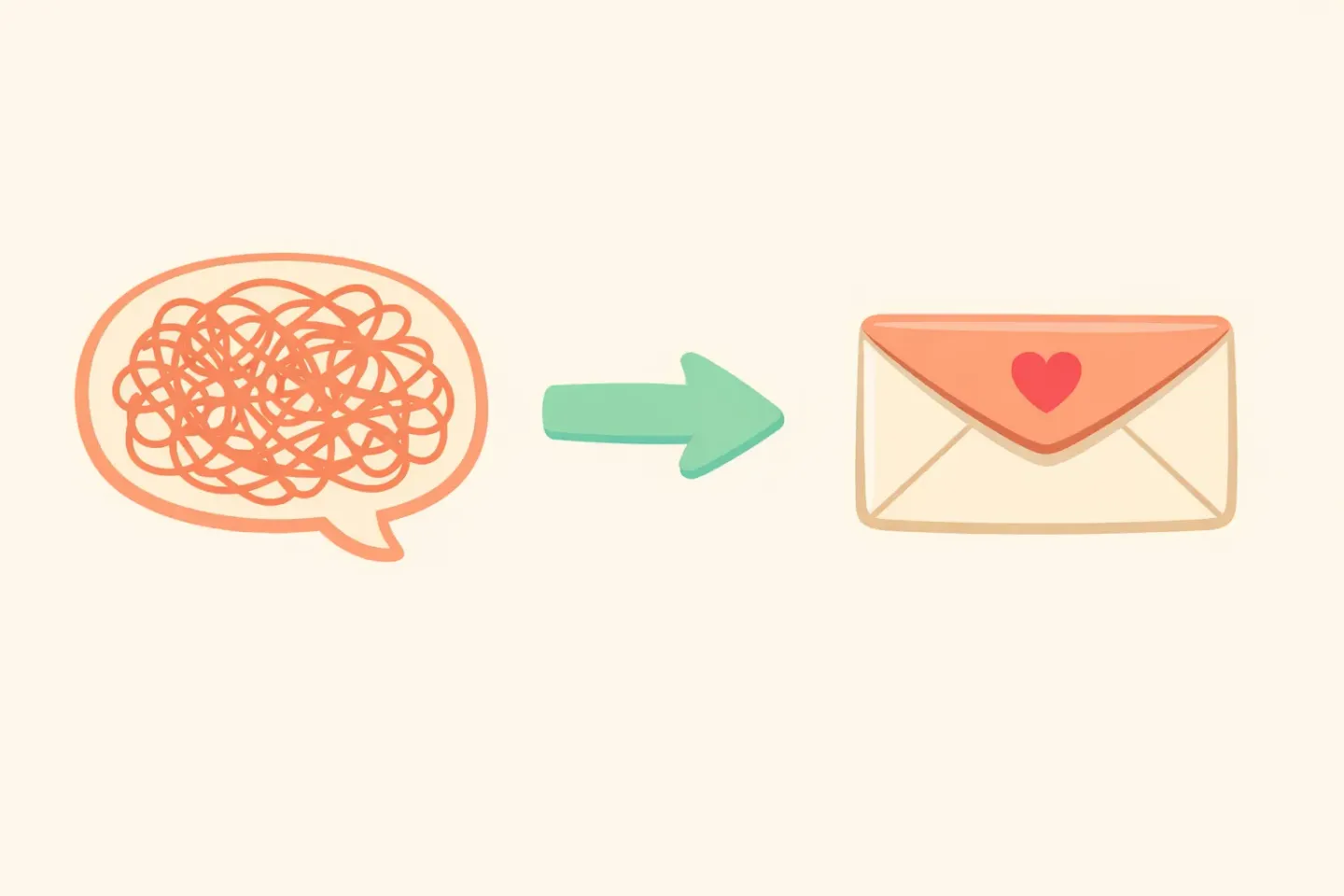
This is where AI-polished dictation changes the math. The idea is straightforward. Take the same audio, transcribe it, then rewrite it as clean, professional text in one step. You speak the messy version; the polished version lands in your clipboard. Paste it into the compose window and edit once instead of three times.
A one-key workflow for every inbox
Voicr is one of the Mac apps built around this idea. It runs in your menu bar, listens for the FN key as its trigger by default, and works the same way in every app on your Mac. The workflow looks like this: 1. Click into the email body. Apple Mail, Gmail, Outlook, doesn't matter. 2. Hold FN. 3. Speak your reply naturally, fillers and restarts and second thoughts included. 4. Release FN. 5. Paste with Cmd+V.
What lands in the email is a clean version that reads like you sat down and wrote it carefully, rather than the raw transcript of what you actually said. That's the difference between dictation as a novelty and dictation as an actual keyboard replacement.
Because the trigger is system-wide, the muscle memory you build for email also covers Slack messages, Notion docs, ChatGPT prompts, and Apple Notes. You set it up once and forget about it.
Tips for dictating better emails
Dictate the body, type the rest
Subject lines, recipient names, attachment filenames, URLs, dates, addresses, phone numbers: type those. They're short, they have to be exact, and dictation is most likely to misfire on them. Save your voice for the part where you're actually composing thoughts.
Speak in complete sentences
Dictation tools punctuate based on pauses and intonation. If you trail off mid-thought, the transcript will too. Take a breath before each sentence, say it cleanly, then move on. You'll get a noticeably cleaner draft.
Don't try to dictate perfectly
If you stop and restart every time you misspeak, you'll spend twice as long as just typing. Talk through the whole email in one pass, mistakes and all. Edit once at the end. With a polished dictation tool, the edit pass often goes away entirely.
Read it back before sending
Even the best dictation isn't perfect. "Their" and "there." Numbers that should be digits but landed as words. A homophone you didn't notice. Always do a quick read-through before you hit send, especially on emails to clients or your boss.
Try it on your next email
Open your inbox. Pick the next email you owe someone, ideally something with a paragraph or two of actual content rather than a one-liner.
Click into the compose box. Set a dictation shortcut if you haven't already. Talk through your reply. See how it feels to think out loud instead of typing it.
If the raw transcript needs more cleanup than feels worth it, that's the moment to try something that polishes as it transcribes. With Voicr, you hold FN, speak the messy version of what you want to say, release, and paste a clean draft into the email. It runs locally on your Mac, works across every app, and gets out of the way once the shortcut is set.
Either way, the inbox stays open, the thread stays in view, and the reply gets written. That's the whole point.