

Here's something you probably do twenty times a week without thinking about it. You type your email signature. Your home address. The same canned reply to recruiters. The boilerplate disclosure at the bottom of every work message.
Each one takes a few seconds. Multiply by twenty, by a hundred, by a thousand over the course of a year, and the time adds up. Text expansion is how you get those minutes back — and on Mac, you don't need to pay a subscription to do it.
What text expansion actually is
Text expansion is a simple idea. You save a short trigger word. The tool watches what you type. The moment you finish typing the trigger, it gets replaced with a longer block of text.
Type `addr` followed by a space, and your home address appears. Type `sig`, and your full email signature lands in the message. Type `meet`, and a five-sentence boilerplate about your scheduling preferences pastes itself in.
The mechanics are the same across every tool. A small background process watches the keyboard, matches what you type against a list of saved triggers, and when it finds a match, deletes the trigger and inserts the expansion. Some tools simulate a paste; others type the characters one at a time. The user-facing behavior is identical.
The TextExpander problem
TextExpander has been the default for years. It works. But the personal tier starts at $4.16 a month in 2026, and the team plans climb from there. Over the lifetime of a Mac, that's hundreds of dollars for a feature that, mechanically, is a few hundred lines of code.
More than the cost, it's the architecture. Your snippets sync through TextExpander's cloud — that's how you get the same shortcuts on a second Mac or your iPhone. But it also means your address, your signatures, your saved canned replies, and anything else you store as a snippet travels through someone else's servers.
For most people, that's fine. For freelancers handling client information, developers whose snippets include API keys or internal URLs, or anyone working in regulated industries, it's a real problem. Text expansion is the only major productivity category where the dominant paid option still defaults to cloud sync.
What a privacy-first text expander does differently
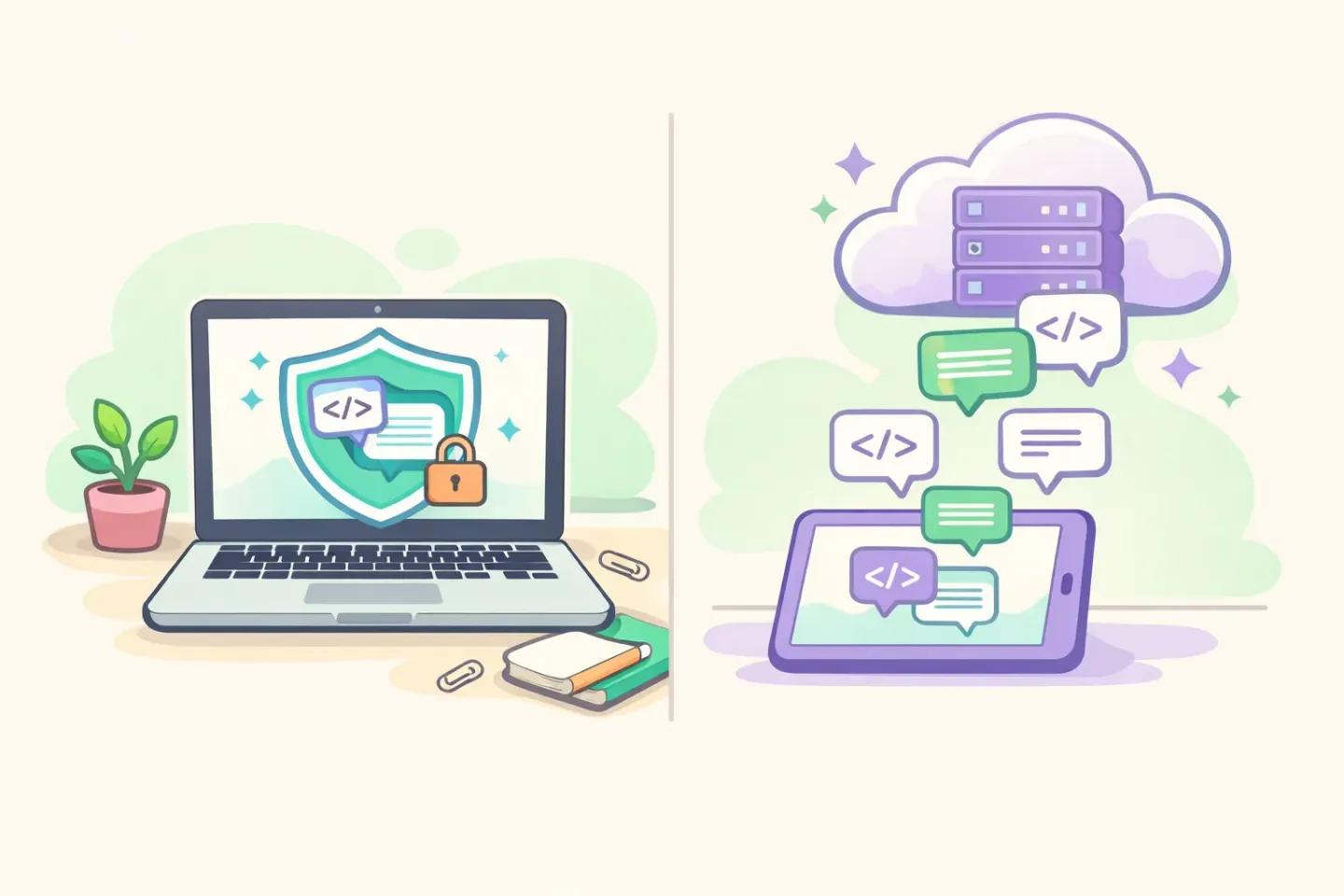
A privacy-first text expander never needs to phone home. Your snippets live in a local database on your Mac. The keystroke matcher runs entirely on your device. Nothing about what you type leaves the machine.
The architecture is consistent across the privacy-first options: - Keystroke buffer — the tool keeps a short rolling buffer in memory, typically the last 50 to 100 characters you typed. When you press a boundary character like space, punctuation, Return, or Tab, it checks whether the tail of the buffer matches a saved trigger. Match means expand. No match means keep listening. - Buffer wipe — the buffer is cleared every time you switch apps, press a modifier shortcut, or trigger an expansion. The tool never holds a long history of what you typed. Just the last few characters in active memory. - On-device matching — the trigger-match code is a pure string check. No network call. No cloud lookup. The expansion text is loaded from a local file and pasted via the system clipboard or simulated keystrokes.
This is how Espanso works. It's how Apple's built-in macOS Text Replacement works. And it's how Voicr's snippet engine works — more on that below.
Common snippets that earn back the most time
The triggers that pay off fastest are the ones you type without thinking. Audit your last week of writing — emails sent, Slack messages, code comments — and you'll spot them quickly. The categories that show up for almost everyone:
Personal contact details — `addr` for your home or office address, `phone` for your number, `email` for the address you use most. Things you've typed thousands of times already. Three triggers, instant payback.
Email signatures — different signatures for different contexts. `sig` for the work one, `sigp` for the personal one, `sigs` for the short one-line version you use in chat.
Canned replies — the messages you send weekly. The "thanks for reaching out, currently not taking new clients" line. The "happy to chat, here's my calendar link" reply. The friendly decline. Each one becomes a two-character trigger you'll thank yourself for setting up.
Code and docs boilerplate — for developers, the obvious wins are license headers, common import blocks, log statement formatters. Some people go further and store entire scaffolding templates as triggers.
Markdown structures — table skeletons, frontmatter blocks, the link syntax you always forget. A `tbl` trigger that drops a 3-column markdown table. A `fm` trigger that drops a frontmatter block with title, date, and slug fields pre-filled.
Most people stop at five to ten triggers because that's where the cognitive load of remembering them tops out. That's also where 80% of the time savings happen. You don't need fifty triggers. You need the right five.
Dynamic snippets with placeholders
Static snippets handle the pure boilerplate. Placeholders handle the snippets where one small piece changes every time — usually a date, a time, or whatever you just had on the clipboard.
Three placeholders cover almost every real case:
`{date}` — replaced with today's date when the snippet fires. A `notes` trigger expands to `Notes from meeting on 5/14/26` — the date stamp is current every time you use it, no manual edit.
`{time}` — current time. Useful for timestamping log entries, daily standup notes, or any kind of journal heading.
`{clipboard}` — whatever you currently have copied. Copy a URL, type a `cite` trigger, and the snippet wraps the URL in a formatted citation. Smart implementations restore the original clipboard contents after the expansion, so nothing gets clobbered.
Some tools add more — `{cursor}` for cursor positioning after expansion, `{form}` for fillable prompts, regex captures from the trigger itself. The trade-off is complexity: every additional placeholder is something else to remember. The three above cover the cases that actually come up day to day.
Voice dictation and text expansion in one app
Most Mac users who care about typing fewer characters end up with two productivity utilities running in the menu bar. A dictation tool for emails and long-form writing. A separate text expander for boilerplate. Two icons. Two preference panels. Two subscription bills.
There's a case for combining them. The underlying mechanics overlap — both tools watch your keyboard, both insert text into whatever app you're focused on. The split exists because the categories grew up independently, not because the workflows are fundamentally different.
Voicr is a voice-to-text app for macOS that ships with a built-in text expansion engine as a standard feature. Hold FN and dictate a long email. Or type `addr` followed by space and your address expands. Same menu bar icon. Same preference panel. Same Free plan.
The expansion engine is local-only. A 64-character rolling buffer in memory matches your keystrokes against your saved triggers. The buffer is wiped on every app switch, every modifier shortcut, and every successful expansion. No cloud sync, no network calls, no screen capture. Snippets are stored in the app's local database — never sent anywhere, never readable by anyone but you.
And it's bundled with the Free plan. Five thousand words a month of voice dictation plus unlimited snippets — no credit card required, nothing to subscribe to. If you're already weighing a dictation app, the comparison in Voicr vs Wispr Flow covers the trade-offs between local and cloud-based voice processing.
Getting started
The fastest way to find out whether text expansion is going to stick for you is to start with three triggers. Pick the boilerplate you typed most often last week. Probably your address. Probably one canned reply. Probably your work signature.
Save those three. Use them for a week. If you start reaching for trigger #4 unprompted — looking for a shortcut to a phrase you've now typed three times — the muscle memory is forming and you'll keep going.
If you want to skip the search-and-install cycle, Voicr handles dictation, text expansion, and the menu bar real estate from one app. The Free plan covers 5,000 words a month of voice-to-text and unlimited snippets. No credit card, no trial timer, no subscription required until you decide you'll keep using it.
Hold FN, speak, paste. Type a trigger, hit space, watch it expand. Same icon, same app — and nothing leaves your Mac.