

You sit down at your Mac with two hours blocked off and a clear goal. Forty minutes later, you've answered three Slack threads, opened a doc you weren't going to touch, and forgotten what you came here to do.
More apps won't fix this. The right ones will, but only because each one removes a specific kind of friction. This is a guide to the Mac apps that hold up under real deep work in 2026, walking through an actual session: blocking the noise, writing, capturing stray thoughts, tracking where your time goes, and getting words out of your head faster than you can type them.
None of these tools turn you into a focused person on their own. Together, the right four or five make it harder to sabotage yourself.
What a deep work session actually needs
Cal Newport's original definition is straightforward: cognitively demanding work performed in a state of distraction-free concentration. The hard part isn't the concentration. It's everything that breaks it.
Watch yourself work for a week and the same frictions keep showing up.
Interruptions coming in. Notifications, browser tabs that auto-refresh, the muscle memory of opening Twitter every eleven minutes. The first job of a deep work setup is to shrink the surface area where interruptions can land.
Friction to capture a stray thought. You're deep in a draft when you remember you owe someone a calendar invite. If logging it takes more than three seconds, you'll either stop writing or carry the thought around as background noise for the rest of the session.
Friction to producing the output itself. Typing isn't neutral. It runs slower than thinking, breaks every few words for grammar and word choice, and pulls you out of the loose mode where good ideas show up. Anything that shrinks the gap between idea and finished sentence makes the session easier.
Every app below is here because it attacks one of those three. If a tool doesn't, it's noise, even if it markets itself as a productivity app.
Block the noise: Cold Turkey, 1Focus, and Freedom
Distraction blockers are the unglamorous foundation of any working deep work setup. They aren't fun. They work because they take willpower out of the loop: you decide once, at the start of the session, and the app handles the rest.
Cold Turkey is the strictest of the three. Its "Frozen Turkey" mode locks your entire Mac except for apps you've allow-listed, and the block survives restarts and even uninstalling the app. There's genuinely no escape hatch once a session starts. This is the right pick if you've already tried the lighter blockers and quietly disabled them mid-session. (Cold Turkey)
1Focus is the Mac-only option. It's simpler than Cold Turkey, cheaper, and the interface fits the platform. If you only work on one machine and you mostly need to keep yourself out of a handful of sites, this is enough.
Freedom is the one to pick if you split your day between a Mac, an iPhone, and an iPad. Starting a session on one device locks the others at the same time, which is the whole point. Most "Mac" distractions are really phone distractions in disguise.
You don't need all three. Pick one. The marginal benefit of a second blocker is zero; the marginal cost of one more app to manage is real.

One keystroke to launch anything: Raycast
Spotlight is fine. Raycast is what Spotlight wanted to be. From a single ⌘-Space prompt it launches apps, finds files, runs calculations, opens Linear tickets, runs scripts, and answers questions through its built-in AI.
Saving keystrokes isn't really the point. The point is that Raycast shortens the moment between "I need to do a thing" and "I'm doing the thing." Reaching for the trackpad to find an app icon is the kind of small context switch that compounds over a two-hour session and leaves you tired without much to show for it.
Raycast's AI features (chat, AI commands, custom presets) replaced a separate ChatGPT tab in a lot of workflows over the past year. If you find yourself alt-tabbing to a browser every time you need a quick rewrite or summary, the in-place version is faster and pulls you out of the work less.
Alfred is the older alternative and still has a loyal following, particularly if you've already built workflows in it. For someone starting fresh in 2026, Raycast is the easier recommendation.
A writing surface that disappears: iA Writer, Ulysses, Scrivener
Distraction-free writing apps aren't really about aesthetics. They're about the interface staying out of the way of the sentence you're trying to write.
iA Writer is the cleanest starting point. Focus Mode dims everything except the current sentence or paragraph, the typography is fixed and good, and there is essentially nothing to fiddle with. One-time purchase, no subscription. Best for blog posts, essays, emails you actually care about, anything under 10,000 words.
Ulysses is what iA Writer turns into if you stick around long enough to need libraries, tags, and Substack publishing. It's subscription-only at $49.99/year, and the recent Apple Intelligence integration (proofreading and rewriting through macOS Writing Tools) makes it more useful than it was twelve months ago. Best for writers managing dozens of pieces in progress at once.
Scrivener is the heavy machinery. If you're writing a book, a thesis, or a research-heavy long-form project, the corkboard view and per-scene structure earn their keep. If you're not, it's overkill and the interface will get in your way.
Pick one. Owning all three is a sign you're shopping for productivity instead of doing it.
Capture without breaking flow: Things 3, Bear, Apple Notes
During a deep work session, your brain will throw off ideas, errands, and follow-ups that have nothing to do with the task. The only way to ignore them safely is to know they're written down somewhere you'll see them later.
Things 3 is the cleanest task inbox on the Mac. Its Quick Entry shortcut opens a small window from anywhere: type, hit return, get back to work. The app assumes you'll process the inbox later instead of organizing on the fly, which is the right default.
Bear fits the same role for stray ideas and longer notes. Markdown-based, fast launch, tag-based organization. If you've ever tried to use Apple Notes for actual writing you know why this exists.
Apple Notes is underrated in 2026. The new collaboration features and Apple Intelligence summaries are good enough that for a lot of people the answer to "do I need Bear?" is genuinely no.
The pattern matters more than the app. Pick one, bind it to a global shortcut, and treat anything outside the current task as inbox fuel, not a context switch.
Know where your hours actually went: Rize and Timing
You cannot fix what you don't measure, and most people are wrong about where their day went. Both of these tools run silently and tell you.
Rize is the AI-coaching option. It categorizes every app and document automatically, distinguishes deep work from shallow work, and surfaces a weekly summary you can actually act on. The May 2026 update added live time entries and confidence scores on auto-tagging, which makes the data noticeably more trustworthy.
Timing is the calmer, more private alternative. It also tracks everything passively, but the focus is on showing you the data and letting you draw your own conclusions. No coaching, no nudges. If you're allergic to apps that talk to you, this is the better fit.
Run one of these for two weeks before you change anything else about your setup. The diagnosis usually surprises people. The time isn't being eaten by what they thought.
Speak instead of type: the underrated deep work tool
Here's the part most "deep work" guides leave out. Typing is one of the biggest interrupters of flow, and almost nobody talks about it.
Watch yourself draft a paragraph and you'll see it: type three words, pause to pick the next one, type two more, backspace, retry, lose the thread of the sentence, start again. Average sustained typing speeds run around 40 words a minute. Comfortable speaking sits north of 150. That gap is where your good ideas evaporate while you're hunting for the right verb.
macOS has built-in dictation, but it gives you a raw transcript: filler words, run-on sentences, no punctuation discipline. You save typing time and spend it on cleanup. Most people try it once, decide it's not worth it, and go back to the keyboard.
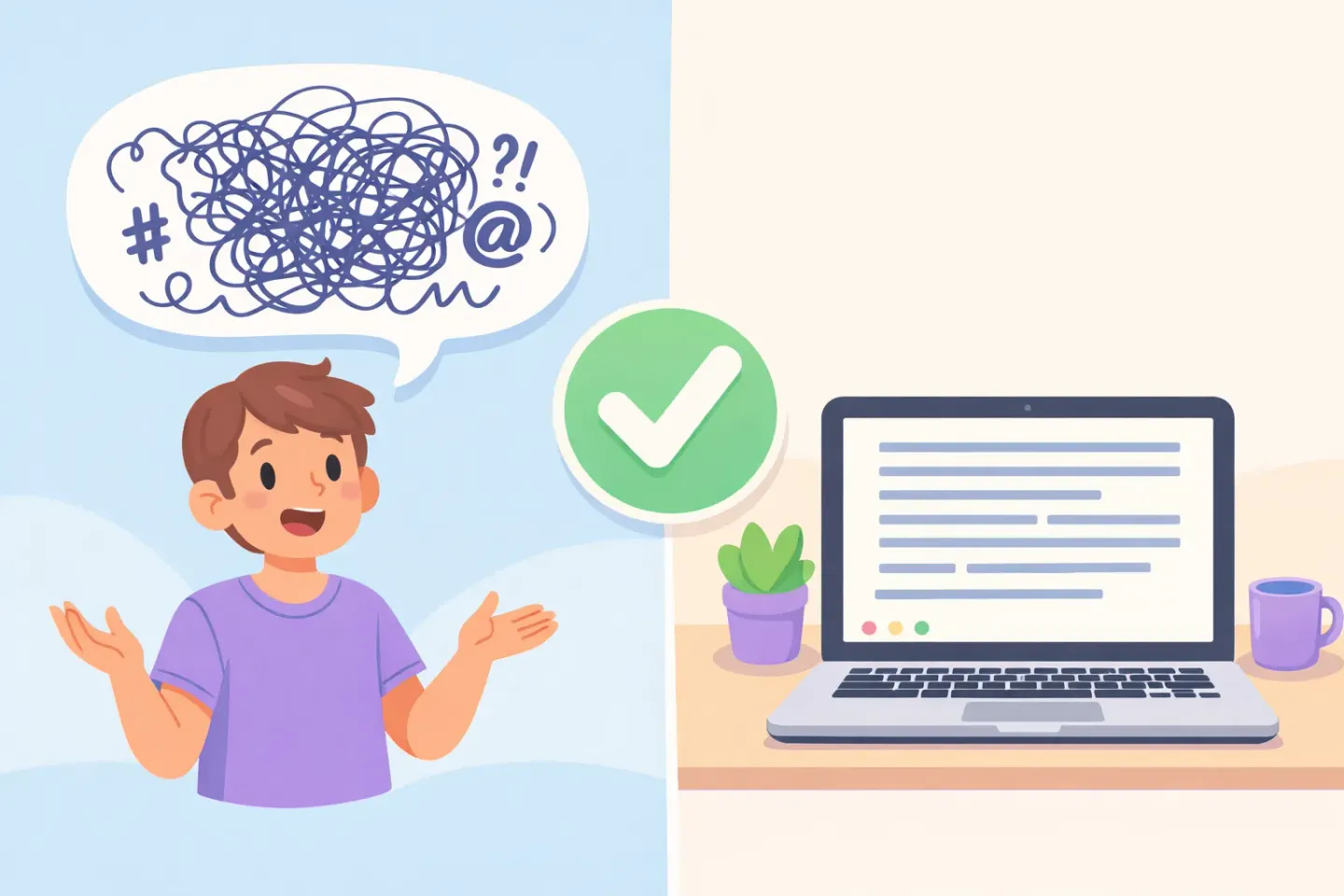
Tools like Voicr close that loop. Hold FN from any app, speak the way you'd explain the idea to a colleague, and the polished version (grammar fixed, fillers removed, tone matched to whatever app you're in) lands in your clipboard. Smart Rules apply different writing styles automatically: casual for Slack, formal for email, terse for code comments. You think out loud, paste, move on.
If your deep work session is mostly writing, this is the closest thing to a step-change. The session ends with more output, less keyboard fatigue, and you stay in the loose, exploratory mode that's the whole point of the time block. See also: why voice is faster than the keyboard and a dictation workflow that saves 2 hours a day.
The minimal stack: five apps, not fifteen
Read enough of these lists and you'll convince yourself you need twelve productivity apps. You don't. Here's the smallest setup that actually holds up: 1. One blocker. Cold Turkey if you'll try to cheat, 1Focus if you won't. 2. Raycast, for launching, switching, and the in-place AI. 3. One writing app. iA Writer for most people, Ulysses if you're writing constantly. 4. One capture tool. Things 3, Bear, or Apple Notes. Just pick one and bind a shortcut. 5. One tracker. Rize or Timing, running silently in the background.
Add Voicr as a sixth if your deep work is mostly about producing text. Skip the productivity podcast about the seventh app.
How to actually use this: build a session, not a stack
Tomorrow morning, try one 90-minute block. Before you start: 1. Open your blocker, pick a preset, and start a session that ends with the block. 2. Close Slack, Mail, and every browser tab that isn't directly relevant. 3. Open the writing app, pick your task, and write the first sentence within 60 seconds. No warm-up. 4. When a stray thought shows up, drop it into your capture tool with a global shortcut. Do not open the email it suggests. 5. If you're drafting anything substantial, dictate instead of type, even just the rough version you'll edit later.
At the end, check the tracker. Two or three sessions in, the data will tell you what's still leaking your time and you can adjust the stack. Most people end up removing apps, not adding them.
The tools matter less than how you use them. With the right four or five running in the background, the work gets easier to start and harder to derail. And if a chunk of that work involves writing, the fastest single change you can make is to stop typing everything. Speak it, paste it, edit it. Hold FN, talk for thirty seconds, get a clean paragraph back. Try it once on tomorrow's first email and see how the rest of the session feels.