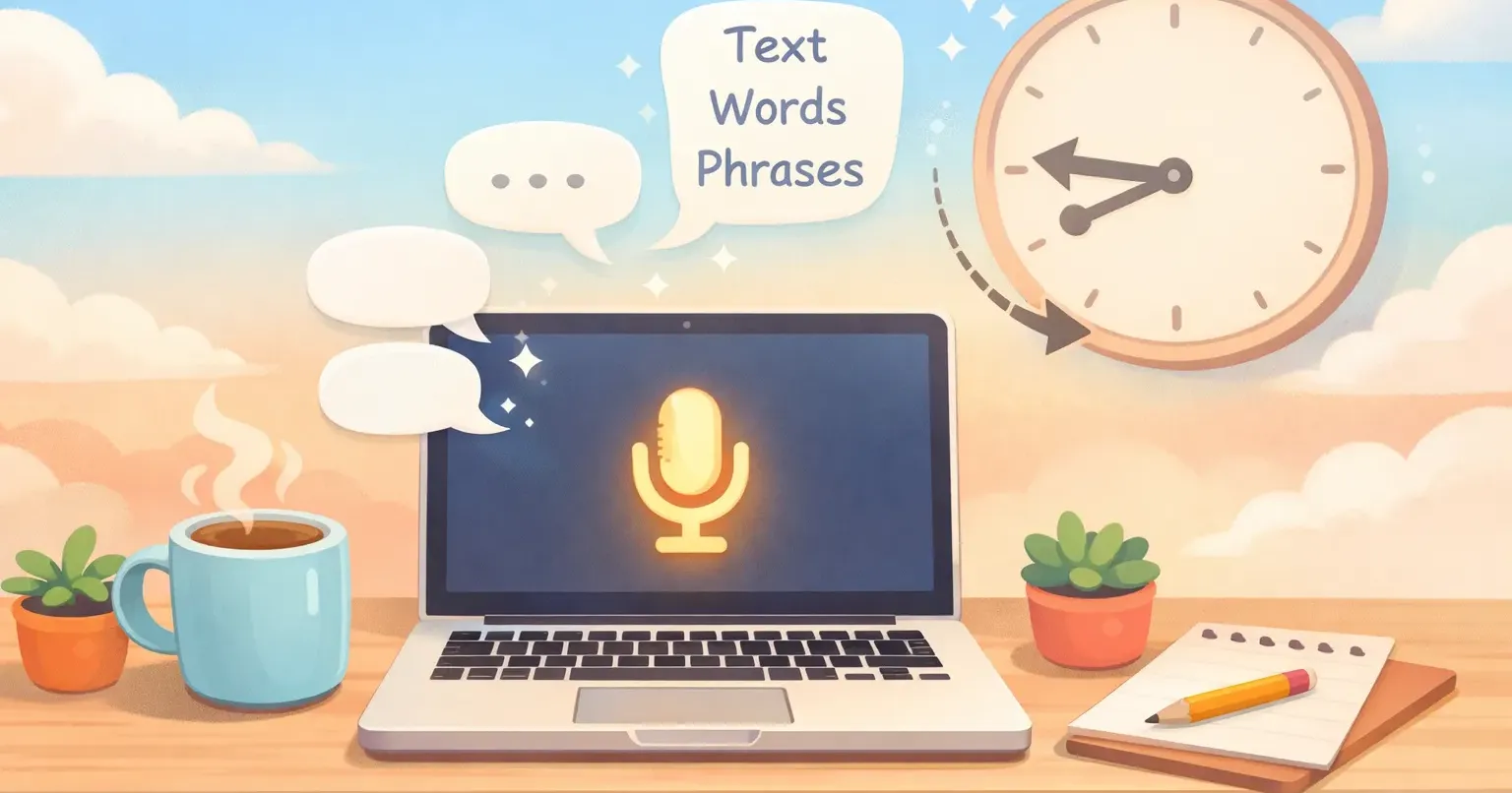
Last Tuesday I caught myself typing a four-paragraph Slack update to my team. When I finished, I checked the timestamp. The message took eight minutes to write.
Eight minutes for something I could have said out loud in ninety seconds. And it wasn't even a hard message. Just a project status with three open questions.
The average person types around 40 words per minute. The average person *speaks* around 150. That's a 3.75x gap, and most of us spend our workdays on the slow side of it. I wanted a dictation workflow that actually saves time, not one that creates more cleanup work than the typing would have cost in the first place.
Why "Just Dictate Everything" Doesn't Work
The first thing I tried was the obvious move. I turned on macOS Dictation and spoke a whole email. What I got back was a paragraph of run-on sentences, missing punctuation, and three "um"s I didn't realize I'd said. Then I spent six minutes editing it.
That's the trap most people fall into. You try dictation once, see the rough output, and decide it's not worth it. The math only works if you don't have to clean up afterward.
There are two ways around this. The first is to slow down, enunciate, and add punctuation out loud. Sort of works, but you sound like a robot reading a script. The second is to use a tool that polishes your speech automatically. I went with option two. If you want a side-by-side, I wrote about how Voicr compares to Apple's built-in dictation elsewhere.
The Three Categories I Sorted My Writing Into
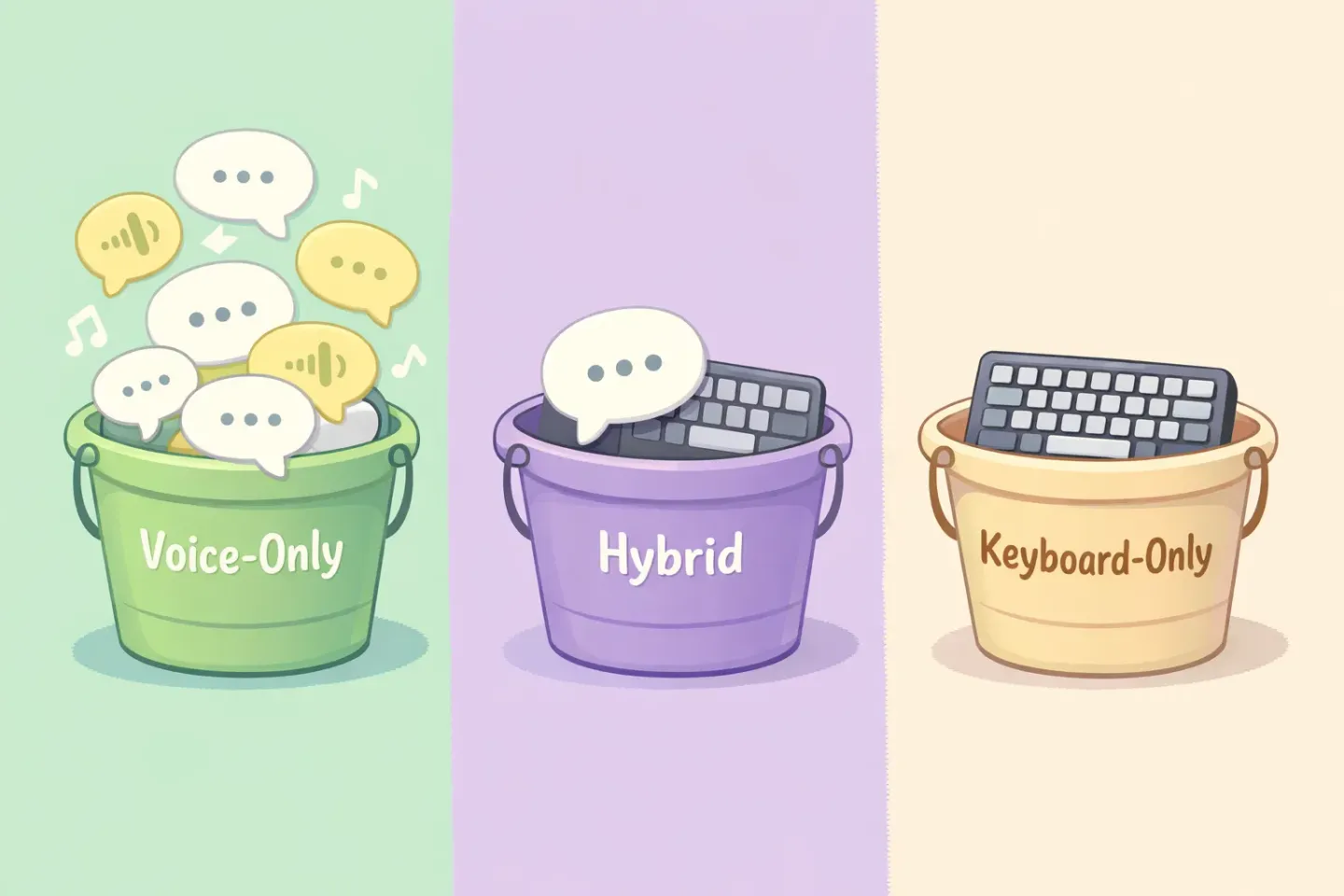
After two weeks of testing, I realized my writing falls into three buckets. Sorting tasks into the right bucket is what made this workflow actually save time.
Voice-only. Long-form thinking. Slack updates, status reports, brainstorm notes, project recaps, draft blog intros. These flow out of your mouth way faster than your fingers. The hardest part is getting comfortable hearing yourself talk to your laptop.
Hybrid. Emails, replies, anything that needs a specific structure. I dictate the body, then go back with the keyboard to tweak the opening line, fix names the AI got wrong, or move a paragraph around. Voice handles 80% of it, fingers do the last 20%.
Keyboard-only. Short replies under ten words. Code. Numbers, addresses, anything that needs to be precise. Passwords. There's a floor below which speaking is slower than typing.
My Daily Dictation Workflow, Step by Step
Here's what an average morning looks like.
8:30, inbox triage. I scan emails and use my keyboard for one-line replies ("Sounds good," "Will do by Friday"). For anything two paragraphs or longer, I hold a key, speak the response, release, paste. Most replies are done in 20 to 30 seconds. I broke down my full email setup in this post on dictating emails on Mac if you want the longer version.
9:30, Slack catch-up. Same routine. Quick reactions are typed. Longer explanations or status updates are dictated. The polished output drops into the message field in 5 to 10 seconds. There's a Slack-specific walkthrough here.
10:30, writing block. This is where the biggest wins live. Whether I'm drafting a doc, a brief, or notes for a meeting, I speak out the first pass. The output isn't final. It's a 70% draft I can edit. But it takes me 8 minutes to produce what would otherwise take 25.
The tool I use for this is Voicr. One key (I use FN), speak, release. The text gets polished. No filler words, no run-ons, no "uh"s. It lands on my clipboard ready to paste. It also adapts to which app I'm in: casual tone in Slack, formal tone in email, plain text in docs. No mode switching.
The Five Habits That Made Dictation Actually Stick
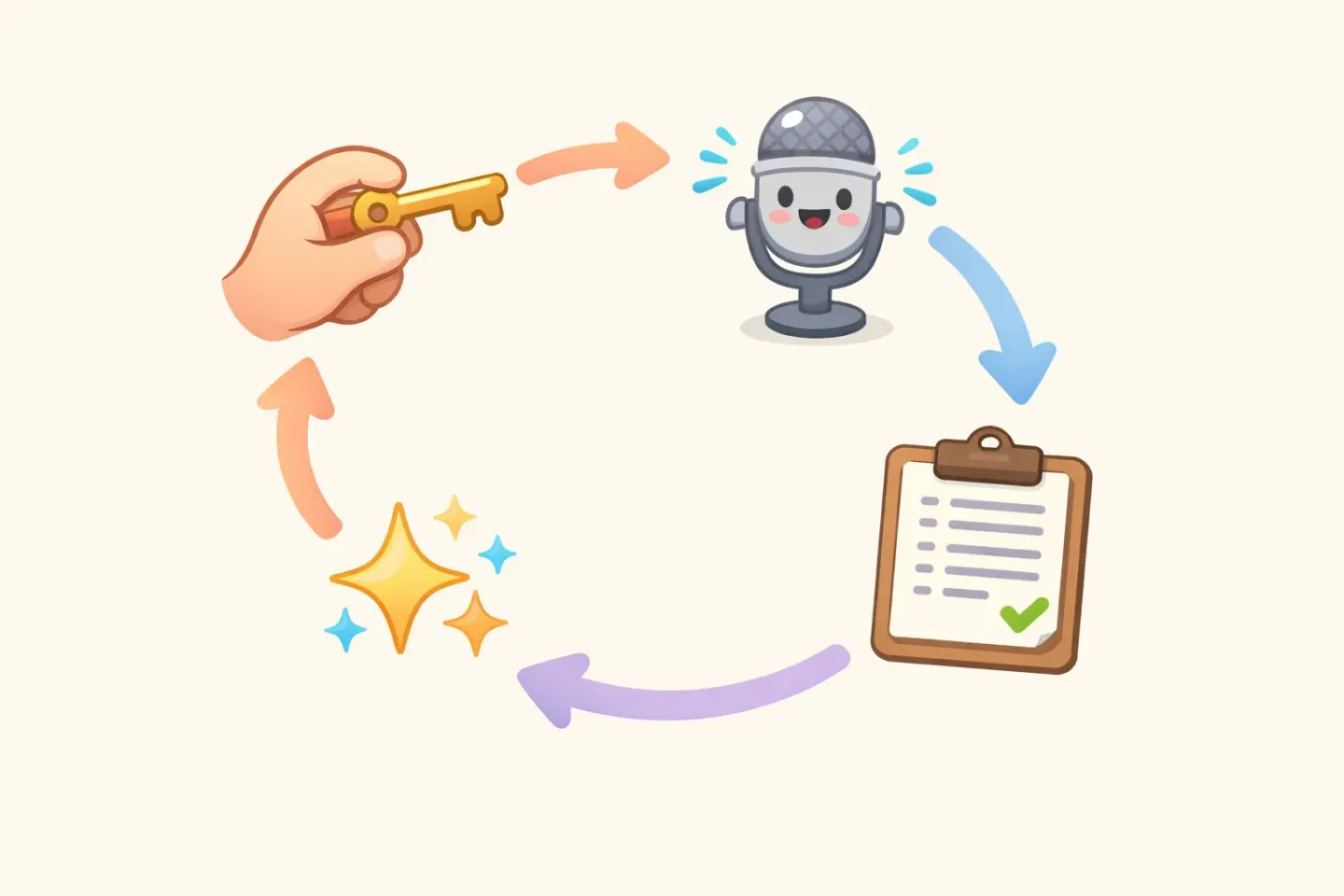
Adopting any new workflow takes some intention. These five habits are what moved me from "I'll try it sometimes" to "I do this without thinking."
1. Set a single key shortcut. If your dictation tool needs you to click a menu, open an app, or fiddle with a window, you'll quit using it within a week. Find one with a global hotkey. One press, one release.
**2. Dictate the *first* draft, edit later.** Don't try to dictate something polished. Get the rough version out fast, then fix it. The "edit as you speak" instinct kills the speed advantage.
3. Use it in apps you already live in. Dictation that only works in one app is useless. Mine works in Slack, Gmail, Notion, VS Code comments, Apple Notes, anywhere I have a cursor.
4. Don't apologize to your dictation tool. If you start saying "sorry, let me rephrase that," it ends up in your text. Just keep going. Pretend you're recording a voice note for a friend.
5. Trust the polish. The biggest mental shift is letting go of "I need to control every word." Once you trust the tool to clean up your speech, you stop hesitating mid-sentence, which is where most of the speed comes from.
What I Still Don't Dictate (And Why)
Honest limits are what make the rest of the workflow believable.
I don't dictate code. I tried. It works for comments and commit messages, but not for actual code. You spend more time correcting symbol names than you save.
I don't dictate sensitive content out loud in shared spaces. Coffee shops, open offices, planes. Keep it on the keyboard or wait until you're alone.
I don't dictate short messages. "Thanks!" is faster to type. So is "On my way." If something is under about 8 words, the keyboard wins.
I don't dictate anything that needs to be perfect on the first pass. Legal text, contracts, things that go to a client without my eyes on it. The polish is good, not flawless.
The Real Math: Where the 2 Hours Come From
Let me show the work.
In a typical week, I write about 25,000 words across emails, messages, docs, and notes. At 40 WPM typing, that's roughly 10.4 hours. At a realistic dictation rate of around 110 effective WPM (after polishing), the same volume takes about 3.8 hours.
The raw gap is 6.5 hours. But I'm not dictating everything. About 30% of my writing stays on the keyboard (short replies, code, precise input). So the real savings come out to roughly 2 hours per week. That's modest compared to the 12-hour claims you'll see floating around. It still adds up to 100+ hours a year.
Three full workdays I get back. Not bad for a habit that costs nothing once you set it up.
Try This Dictation Workflow for a Week
Here's the experiment. For the next five workdays, dictate any message longer than three sentences. Email replies, Slack updates, doc drafts, meeting notes. Everything shorter, keep on the keyboard. At the end of the week, check how many of your draft-and-rewrite cycles you cut.
If you want a tool that handles the polishing automatically, so your speech comes out as clean, sendable text without a cleanup pass, Voicr does that on Mac. Hold FN, speak, paste. The first 5,000 words a month are free, no credit card.
Or start with macOS built-in Dictation if you want to test the habit before committing to any tool. Just be ready to spend a few extra minutes editing each pass. The point isn't which tool you pick. It's whether you let your fingers do work your voice could do faster.