

Your meeting just ended. You've got maybe eight minutes before the next one starts. The good ideas are still in your head somewhere, and you're sitting in front of an empty Notion page with your fingers on the keyboard, already knowing you're not going to finish in time.
Most Notion users live in that gap. The tool is mostly prose. Meeting notes, journals, briefs, PRDs, weekly reviews. Typing prose is slow. Your brain runs at around 150 words a minute and your fingers manage 40 on a good day, and the difference is exactly where Notion eats your evenings.
The obvious fix is voice. The annoying part is that Notion has no microphone button on desktop, and macOS built-in dictation, the answer most people land on, only solves about half of it. Here's a setup that actually works.
Why voice belongs in Notion in the first place
Notion isn't a spreadsheet. Most of what you write inside it is paragraphs. Context, recaps, decisions, half-formed ideas you'll come back to. That's the kind of writing where the keyboard is the bottleneck, not your thinking.
Stanford researchers measured voice input at roughly 3x faster than typing on a smartphone keyboard, and the desktop number isn't far off. People speak at about 130 to 150 words per minute. The average typist sits at 38 to 40. Even people who think they type fast are usually slower than they think.
The annoying catch is that Notion the company hasn't shipped a voice button on Mac. You can't tap a microphone inside a block. Voice has to come from the operating system, or from a third-party app sitting on top of it.
What macOS Dictation gives you out of the box
Apple's dictation works in any text field on your Mac, Notion included. Open System Settings, click Keyboard, scroll to Dictation, and toggle it on. The default shortcut is Fn pressed twice. You can change it to F5 or a custom key in the same panel.
With dictation on, click into a Notion page, press your shortcut, and start talking. Words appear in the block in real time. Press the shortcut again to stop.
For short captures, this is genuinely enough. A one-line title, a quick database field, a sentence dropped into your inbox page. You're not going to beat it for speed when all you need is to land a thought and move on. If you want a deeper comparison of where it falls short, we have a full Voicr vs Apple Dictation breakdown.
Where built-in dictation breaks down inside Notion
The cracks show up the second you try to do real work this way. macOS Dictation transcribes what you say literally. Want a comma? Say "comma." Want a new paragraph? Say "new paragraph." Forget once and you've got a wall of run-on text that reads like a long thought you never finished.
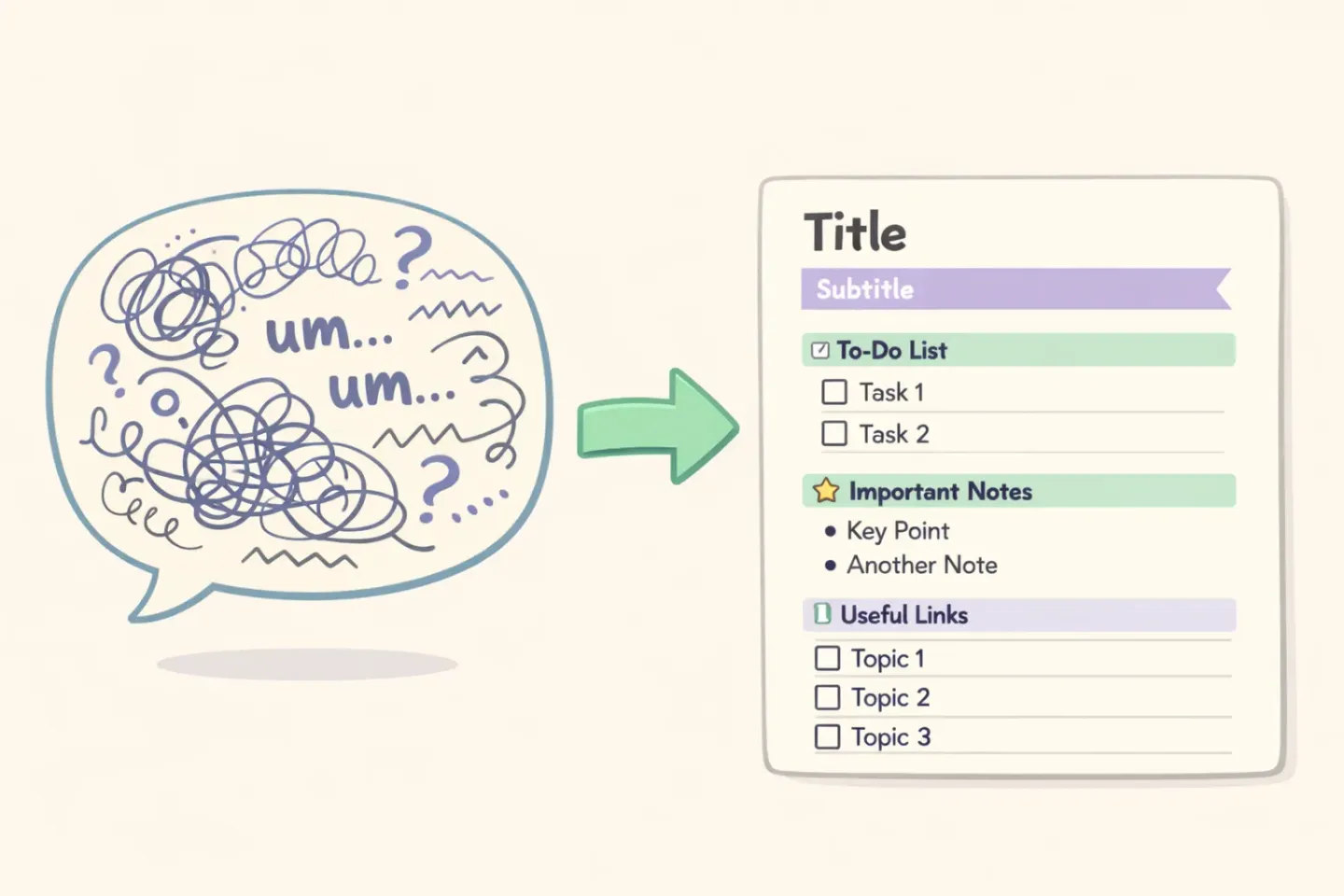
It also has no idea what Notion is doing structurally. There's no way to say "make this a heading" or "add a toggle" and have Notion respond. Slash commands work by typing the slash and picking a block from the menu, but dictation just types the literal word and nothing happens. You can dictate the content. You can't dictate the page.
And the output reads like dictation. Filler words, false starts, sentences that trail off into nothing. *"So yeah um I think for next week we should probably try to ship by Friday because."* Fine for capturing the thought in the moment. Useless as notes a teammate will actually read.
The two-pass workflow that actually works
The reframe is simple. Stop trying to use voice for everything. Use voice for the part where your hands slow you down, and the keyboard for the part where your hands are already fast.
In practice: dictate the prose, type the structure. First pass, you dump the content into a single block by voice. The whole meeting recap, the whole journal entry, the whole PRD section. Second pass, you spend thirty seconds with the keyboard breaking it into headings, adding toggles, linking pages, setting database properties.
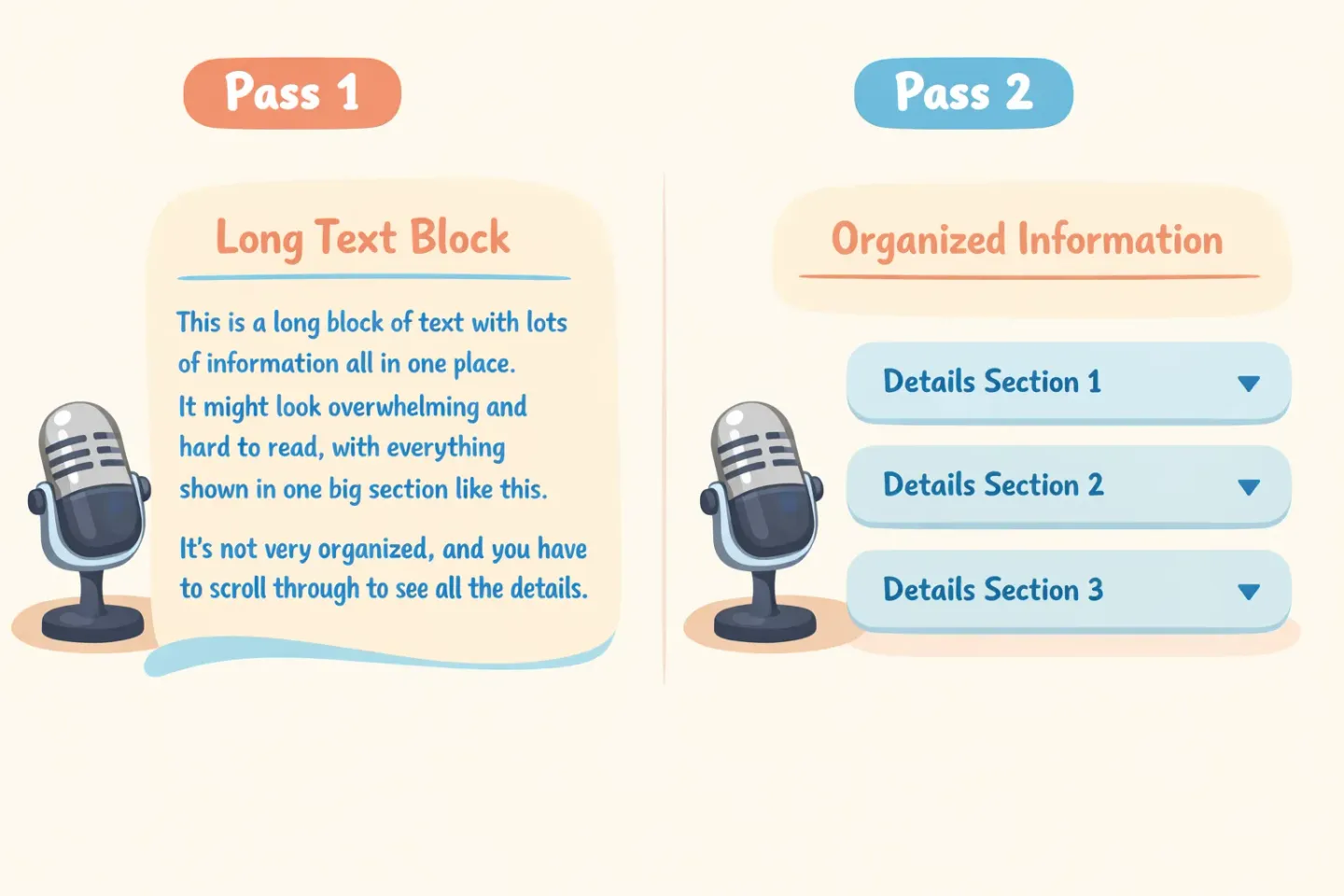
It feels backwards because you're "doing it twice." The math still works. A 500-word meeting recap is around twelve minutes to type from scratch. Dictate it in four minutes and format it in one, and you're done in less than half the time, with better content, because you got it out while you still remembered it.
What to dictate vs. what to type
Once the two-pass thing clicks, you stop fighting voice for things it can't do. Here's the rough split.
Dictate this: - Meeting notes and recaps - Daily journal entries - PRD and brief first drafts - Weekly reviews and standups - Brain dumps and idea capture - Long comments on someone else's page
Type this: - Page titles - Slash commands and block conversions - Database properties, dates, statuses - @-mentions and page links - Tables, formatting, layout cleanups - Anything where you're tabbing between fields
Rule of thumb: if it's prose, voice is faster. If it's structure, your hands are.
Five Notion workflows where voice actually wins
1. Meeting notes
This is the easy one. Open the meeting page during the call. Dictate decisions and action items in the moment they happen. Format after. The notes are done before you log off, instead of three hours later when you've already forgotten what "circle back on the API thing" was supposed to mean.
2. Daily journal
Voice is forgiving in a way the keyboard isn't. You can dictate a daily log in the time it takes to brew coffee, get the day out of your head, and stop carrying it around with you. If you already run a daily journal database in Notion, voice removes the friction that makes most people quit doing it after a week.
This is also where polish matters more than raw speed. If you're already using dictation but cleaning up the output line by line, Voicr takes that step off your plate. It transcribes, fixes grammar, drops filler words, and pastes finished text right into your Notion page. Hold FN, speak, release. What lands is already readable.
3. PRD and brief first drafts
PRDs always start the same way. The idea is in your head and the empty page is intimidating. Talk through it instead. Dictate the problem, the proposed solution, the open questions, the risks. You'll be surprised how much you already know about the thing once you say it out loud.
4. Weekly reviews
Friday review, weekly retro, whatever you call it. These are recaps you write because you should, not because you want to. The faster they get done, the more often you actually do them. Talk through what shipped, what didn't, what next week needs. Two minutes of dictation instead of fifteen minutes of typing.
5. Idea capture
This one really rewards a hold-to-speak shortcut. When a thought hits while you're already in the middle of something, you don't want to break flow to type it out. A one-key dictation setup lets you drop a paragraph into your Notion inbox page and get back to what you were doing in under ten seconds.
Choosing your voice setup
There are two real options on a Mac in 2026.
macOS Dictation. Free, built in, real-time. Good for short captures. You'll be speaking your punctuation, formatting afterward, and living with raw transcripts. If you only reach for voice occasionally, this is enough.
Polished dictation apps. These sit between you and the system clipboard. Hold a key, speak, release. The app transcribes, runs the output through AI cleanup, and pastes finished text into whatever app you have focused. Notion, Slack, email, code editor, same shortcut everywhere. You don't say punctuation. You don't fix filler words. What comes out is already publishable.
The trade-off is honest. Built-in is free and immediate but raw. A polished tool costs a few dollars a month and gives you finished text in one step. If you're writing in Notion every day, the second option pays for itself in the first week. For a side-by-side of the top options, see our best voice-to-text apps for Mac roundup.
A simple way to start tomorrow
Don't try to switch everything at once. Pick one Notion workflow tomorrow. Your standup notes, your daily log, your meeting recaps, whatever you do every day. Use voice for the body of every entry that day. Keep typing for everything else.
The shape of the work will tell you within an hour what's worth keeping. Most people find one or two workflows where voice obviously wins, and quietly stop forcing it on the rest. That's fine. Voice isn't supposed to replace your keyboard. It's there to take the slow parts off your hands.
If you want a setup that handles the cleanup for you, Voicr does the two-pass workflow in one step. Hold FN, speak, paste polished text into any Notion page. It works the same across Slack, email, and docs, so once it's set up, voice is available wherever your hands are already typing.