
Your day on a Mac looks something like this. A Slack message to the team in English. A client email in Polish. A voice note to yourself in something halfway between the two. By 11am you've toggled the keyboard layout fifteen times and you're not even sure which language you started the morning in.
Each switch costs you a few seconds at the keyboard, a few more re-reading what you typed, and a slice of focus you don't get back. Multiply it by fifty switches a day and you start to feel why multilingual remote work wears you out in ways you can't easily explain to a monolingual colleague.
Remote work made this the new normal. Your team is in one country, your clients in another, your family in a third. The Mac you're working on wasn't built for that, and most apps that try to fix it are really monolingual apps with a translate button bolted on. This piece is about what actually works in 2026: what the best Mac app for multilingual remote workers does differently, and how to set yourself up so you stop fighting the language picker.
The cost of working in multiple languages on a Mac
Switch costs aren't only typos. Research on bilingual production going back two decades shows that switching between languages adds reaction time and error rate, and the costs are asymmetric: getting back into your dominant language is harder than going the other direction. The studies sit at the NIH archive if you want the data.
On a Mac it shows up in three places. The keyboard layout toggle (Ctrl+Space on most setups) is fast, but it doesn't move your mental gear-shift along with it. Spell-check fights you constantly, underlining Polish words while you're writing in English and vice versa. And the dictation key only knows one language at a time. Start your morning in English, slip into Russian for a voice note, and the transcription comes out as nonsense Cyrillic spelled in English letters.
None of this is dramatic. It's just steady friction. The same research linking multilingual teams to 20% more ideas in brainstorming and 18% more innovative solutions (Harvard Business Review's work on linguistically diverse teams) also tells you the cognitive load is real. The right Mac app doesn't remove the load. It removes the *manual* part.
What multilingual remote workers actually need from a Mac app
Before listing apps, here's the criteria checklist worth holding any tool against. If you're picking one, this is the bar:
- Works in every app you write in. Notes and Google Docs aren't enough. You need it in Slack, Gmail, Notion, Linear, WhatsApp Web, your code editor. - Supports the actual languages you use. English variants and the major European languages are the easy part. Mandarin, Hindi, Arabic, Tagalog, Vietnamese, the long tail matters if you live in it. - Auto-detects from the audio, not from a menu you click. If you have to set the language before each recording, it's another switch cost. - Optionally translates to English so you can think in your native language and have your team read English without a second tool in the loop. - Polishes the output. Raw transcripts are full of filler words, restarts, and run-on sentences in *any* language. You want clean prose, not a stenographer's log. - Doesn't break your shortcuts. A dedicated key you can hold from anywhere, no app to switch into, no window to find.
Hold every option below against that list.
Why Apple's built-in dictation falls short for daily multilingual use
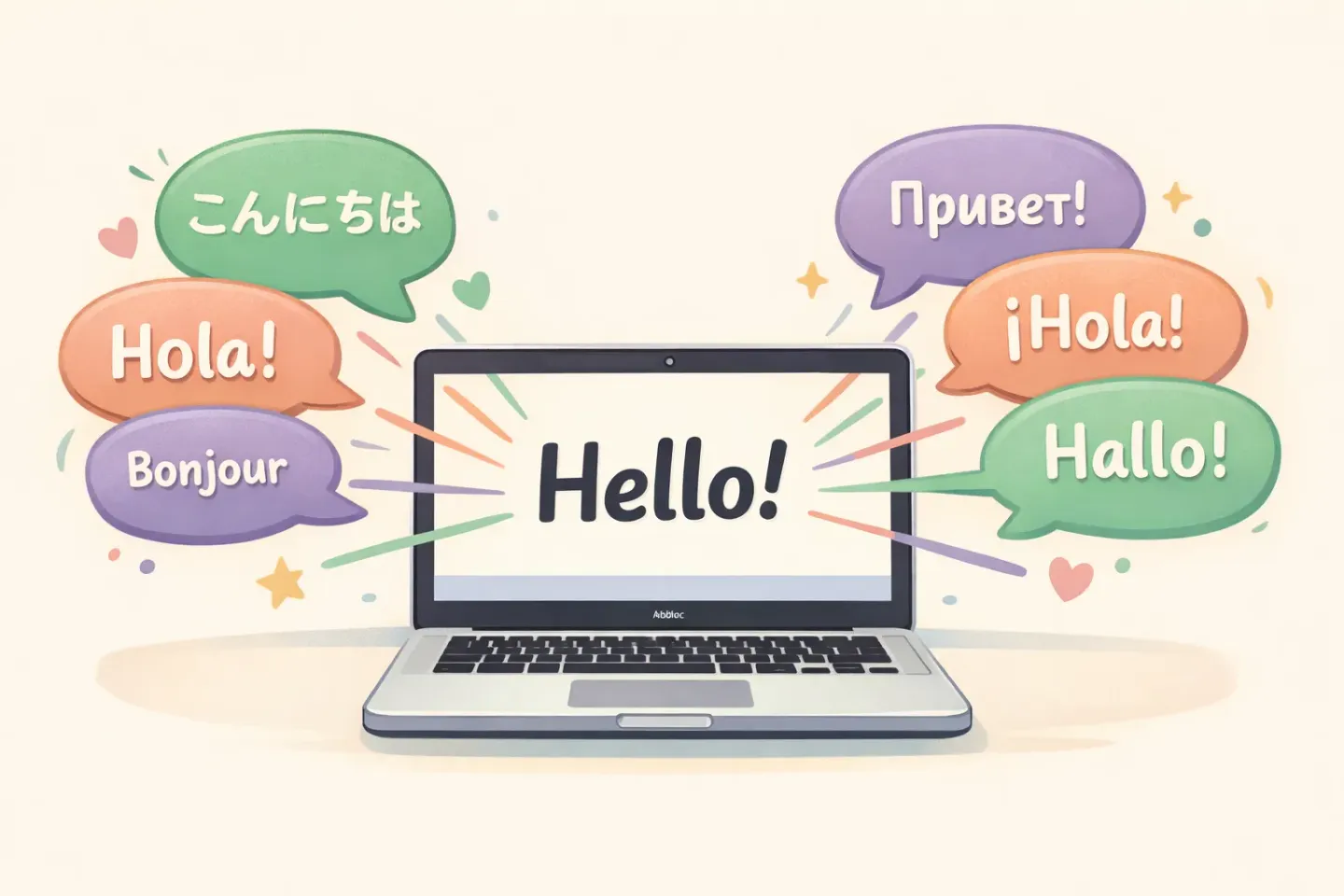
Apple Dictation supports about 50 languages and regional variants. That's enough for most people on paper. The problem is the switching mechanic.
You enable each language one at a time in System Settings, then switch between them by clicking the language abbreviation next to the cursor, or by pressing the Globe key if your keyboard has one. It's described pretty clearly in Apple's official guide. For one or two messages a day this works fine. For fifty, you'll spend more time fighting the picker than typing would have taken.
Apple Dictation also doesn't polish anything. You get a raw transcript with the filler words, the false starts, and the "um, so, like" intact. macOS Sequoia added file-based transcription to Notes and Voice Memos in late 2024, which is genuinely useful. The catch is that this feature only covers about ten languages, so most multilingual workers fall outside it anyway.
For a deeper comparison of where Apple Dictation hits its ceiling, read Voicr vs Apple Dictation.
The contenders, compared honestly
Here's the short version of what's actually competitive in 2026. No affiliate-style cheerleading. What each tool is good at and where it falls short for this use case.
Voicr
Menu bar dictation app. Hold FN to record from anywhere on your Mac. Uses Whisper large-v3-turbo under the hood, so it supports the full 100-language catalogue including Cantonese, Hindi, Vietnamese, and other languages most US-built tools skip. Auto-detect mode picks the language from the audio itself, not from a menu. There's a Translate-to-English mode that transcribes and translates in one shortcut, so your team reads English even though you spoke Polish. AI polishing is built in. Free tier covers 5,000 words/month; paid plans are $3 and $10/mo.
Best for: people who write across three or more languages and want one shortcut to handle all of them, including translation.
Wispr Flow
Strong product, well-marketed. Supports 100+ languages with auto-detect that picks one language per session. The 2026 update moved the language picker into the Flow Bar for one-click switching, which is a tacit admission that auto-detect alone doesn't always nail it. Cloud-based, $15/mo. Deeper comparison: Voicr vs Wispr Flow.
Best for: users who want a polished mainstream product and don't mind the higher price.
Whisper Transcription (the macOS app)
Runs Whisper locally on your Mac. 99 languages, no cloud, one-time purchase. The catch is what it doesn't do: no polishing, no app-aware behavior, no shortcut from inside other apps. You get raw Whisper output in a window, and you copy from there. Good if privacy matters more than speed.
Best for: privacy-focused users handling confidential content who are willing to clean up the output themselves.
Otter.ai
Often listed in the same breath as dictation tools, but it's really a meeting transcription product. English-dominant. Its non-English coverage is small. If your job is taking notes during multilingual video calls, Otter isn't your tool either. Look at a real multilingual meeting transcriber if that's the workflow.
Apple Dictation
Covered above. Free, ~50 languages, no auto-detect, no polishing, manual picker. The right floor to compare every paid tool against.
The unlock: voice dictation with auto-language detection
The single feature that changes the day-to-day most is auto-detection from the audio. Not from a UI dropdown. Not from a setting you flip. From whatever you actually say.
Whisper's language identification reads the first few seconds of your speech and decides which of the supported languages you're in. For a multilingual worker, this means you stop pre-selecting anything. You hold the dictation key, speak in whatever language is in your head, and the right transcription lands. Then your next thought might be in a different language, and the same shortcut does the right thing again.
Two caveats worth knowing. First, detection happens per recording, not per word. If you switch languages mid-sentence, the model commits to whichever language was strongest at the start. The fix is to release the key between languages, which is usually what you'd do anyway when you switch contexts. Second, on the long tail (rare language pairs, mixed dialects) accuracy is lower than for big language pairs. For English, Spanish, French, German, Italian, Portuguese, Polish, Russian, Mandarin, and Hindi, it's effectively flawless.
If you've been wrestling with the macOS language picker all day, this is the feature you've been wanting. Voicr's Auto mode reads the language from the audio and applies the right transcription path across 100 languages. No menu, no flag picker, no setup before each thought. The full breakdown sits in voice to text in 100 languages on Mac if you want the technical detail.
The translate-to-English shortcut your team will thank you for
The second feature that changes a multilingual workday is in-stream translation. Most remote workers write to a team in one language (usually English) while thinking in their native one. The default workflow looks like this:
1. Open Google Translate or DeepL 2. Type or paste your native-language draft 3. Read the translation, tweak it 4. Copy the result 5. Paste into Slack/email/Notion
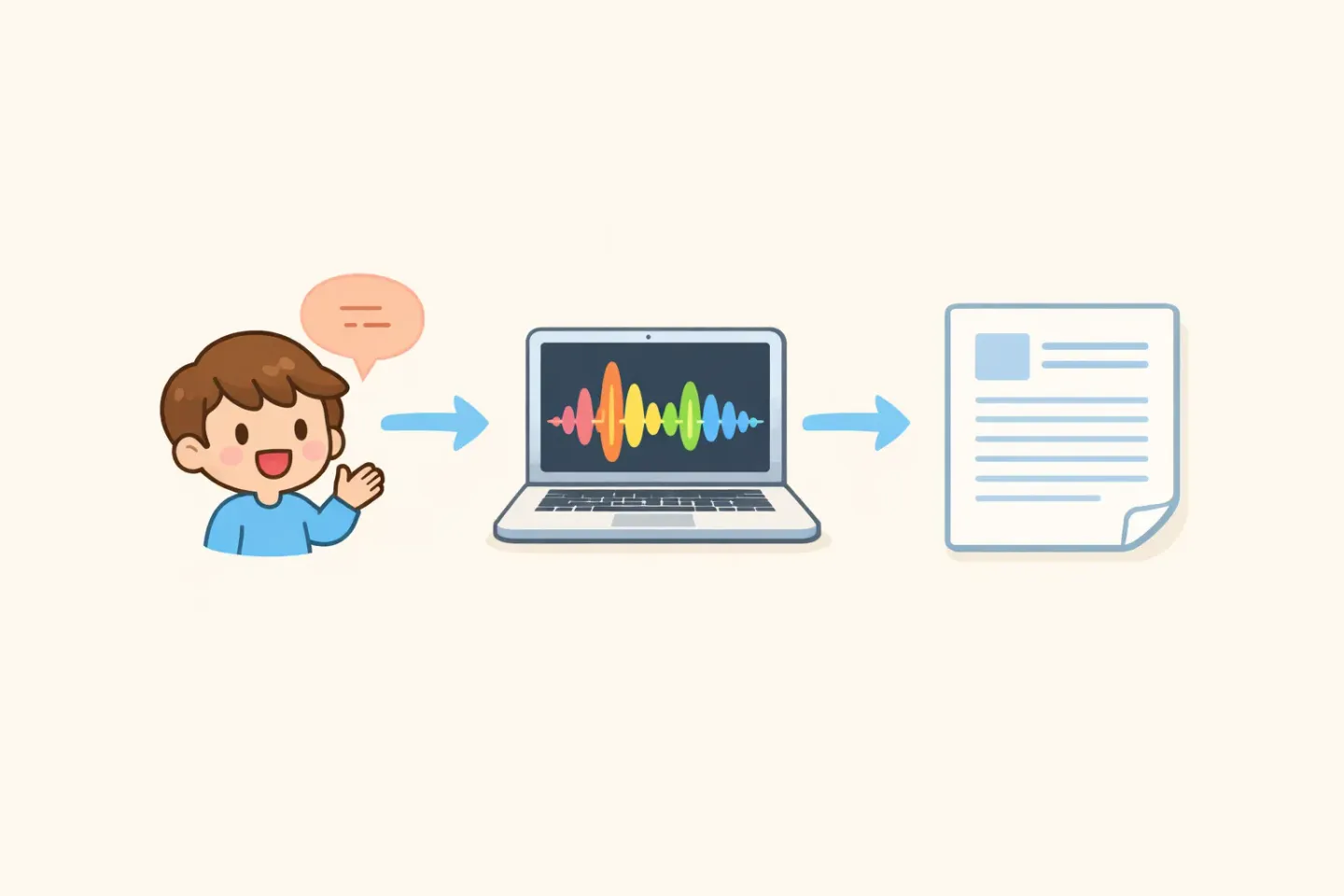
Five steps, a context switch out of your real app, and a translation that nobody polished. The dictation-with-translate workflow collapses this to one step: hold the key, speak in your native language, and the polished English version lands in your clipboard. Whisper does the speech-to-text and the translation in a single pass; the polishing layer cleans the output so it reads like something a native speaker would write.
This is the feature most multilingual remote workers underestimate until they use it for a week. After that, the translate-then-paste loop feels like dial-up.
What a multilingual workday looks like with the right setup
Here's what changes if you wire this up properly. A real Tuesday.
8:30am. Morning voice notes to yourself in your native language. Auto-detect on, polishing on. They land in your notes app polished, in your native language.
9:15am. Stand-up Slack message to the team. Translate-to-English mode on. You think in your native language, speak naturally for fifteen seconds, and a clean English Slack message lands in the input field. Smart Rules apply a casual tone because you're in Slack.
10:30am. Client email in Polish. Auto-detect picks up Polish from the audio. Polishing applies a formal tone because you're in Mail.
12:45pm. WhatsApp message to a friend in Spanish. Auto-detect picks up Spanish. Smart Rules apply a casual tone because WhatsApp.
3:00pm. Linear ticket description in English for the engineering team. You speak it in your native language, Translate-to-English does the rest, and the result reads like a ticket written by a native English speaker.
6:30pm. Evening journal in your native language. No translation, full polishing in that language.
Same dictation key all day. Zero language menus. Zero copy-paste through a translator. That's the workday a good multilingual setup makes possible.
Practical takeaway: how to set this up
Don't over-think it. Three steps.
1. Spend one day using Apple Dictation in your two most-used languages. Feel the friction. It's the baseline. 2. If you work across three or more languages, or you want polishing and translation built in, try Voicr's free tier (5,000 words/month, enough to test it across a week of real work). 3. Set Auto-detect on for ambient use. Switch to Translate-to-English for client and team-facing messages where the audience reads English. Leave it on Auto for personal notes.
Most multilingual workers I've talked to settle into this pattern within three days. The keyboard layout switcher becomes a thing they only touch when they're typing for some specific reason, not a constant background task.
The fastest way to start
The point of any of this isn't faster typing. It's not having to think about which language mode you're in. The Mac doesn't know whether your next sentence is for your team, your client, or yourself. The keyboard certainly doesn't. The dictation key shouldn't have to either.
Hold FN, speak in whatever language is in your head, paste. Voicr handles the language detection, the polishing, and (if you want it) the translation to English in one step. 100 languages, one shortcut, no menus. If you're tired of the keyboard switcher, that's the version of the workflow worth trying. The free tier covers enough for a week of real multilingual work before you decide whether to upgrade.